
Update a Menu Image and Keep the Same Lettering
Quick answer: When a price on a menu image is outdated, you do not need a layered design file. Upload the JPG, PNG or WebP to Retypit, click each price line, type the new amount, and click Run. Then check every changed price against your source list before you reuse the image.
JPG, PNG or WebP · Max 20MB
When you already have the menu as a picture
A photographed or exported menu is a flat image. The prices are pixels on the page, not a column you can open in a layout file. That is why a photo app or a word processor cannot simply click into $15.00 and type a new amount.
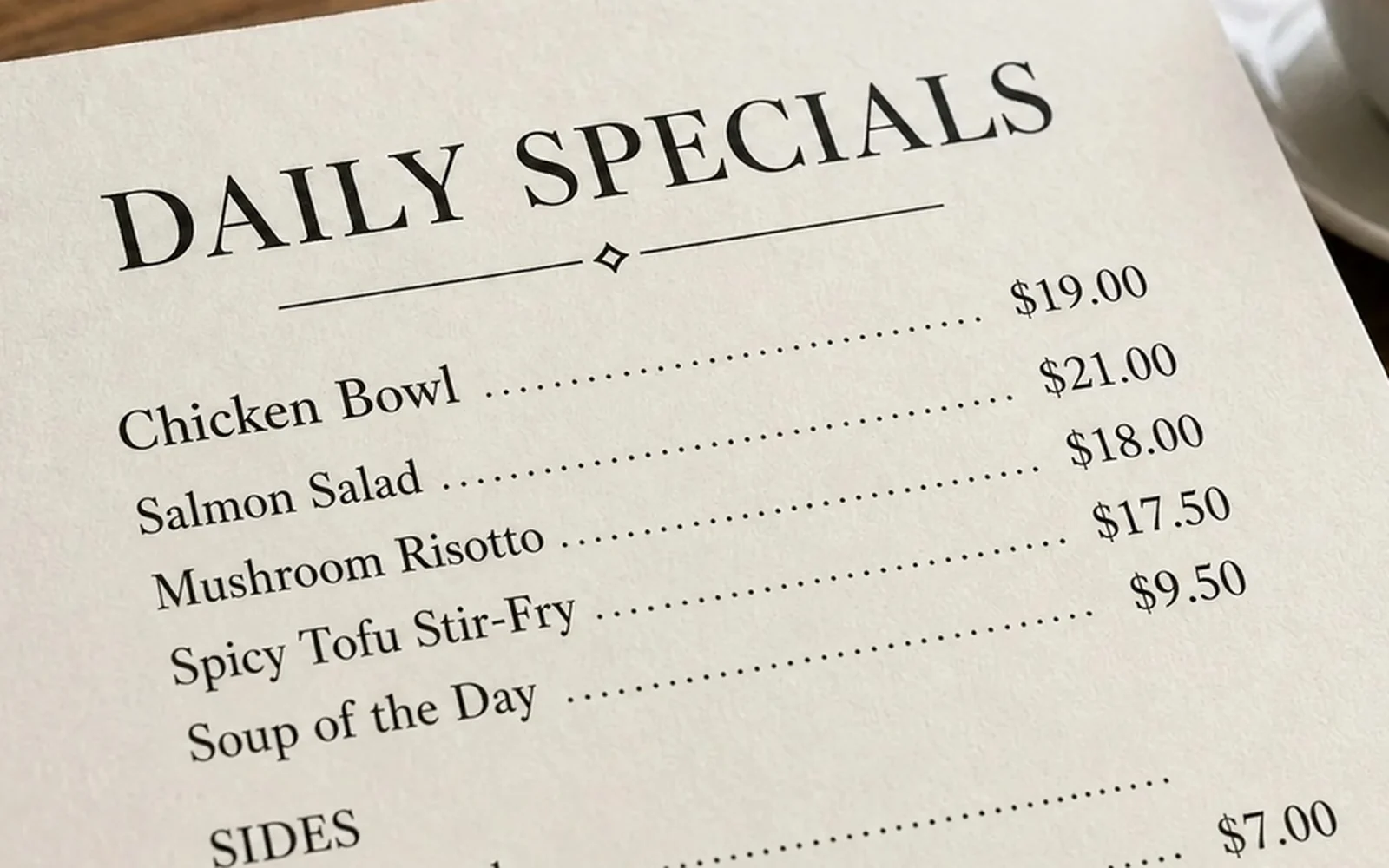
This page is for updating a menu image you already have — usually prices, sometimes a short item name — and keeping the existing lettering. The example above is the DAILY SPECIALS card already shown on the Retypit homepage. Only the amounts changed. The heading, the leader dots, and the readable dish names (Chicken Bowl, Salmon Salad, Mushroom Risotto, Spicy Tofu Stir-Fry) were left as they were.
Use this on a menu graphic you own or are allowed to edit. It is not for receipts, invoices, or other payment documents, and it does not edit a PDF as a document file. If all you have is a PDF, export or photograph the page as a JPG, PNG or WebP first. The 20MB upload limit still applies.
How to update the prices (3 steps)
You work in the browser. Retypit accepts a JPG, PNG or WebP up to 20MB. You need to sign in to edit.
- Upload the menu image. To edit text in an image, open the homepage and drop in the file. Retypit detects the lines of text it can find and numbers them.
- Click each price and retype it. Select the numbered price line, type the new amount, and continue with any other prices you need to change. Then click Run. You can select several lines and run them together.
- Download the result. When the run finishes, open your history and download the edited image. There is no watermark.
If the menu is a photographed JPEG, how to edit text in a JPEG walks through the same editor with more on flat photo files. For the general method, see how to change text in an image or how to edit text in an image and keep the same font.
Type the new amount the same way as the old one
Match the format you already see on the menu: the currency symbol, the decimals, and the spacing. In the published example every price is written like $15.00 or $13.50, so the new amounts stay in that pattern ($21.00, $18.00), not 21 or $18.
Keep the new string close in length to the original. Replacing $9.00 with $12.50 is usually a small shift; replacing a short amount with a long phrase can crowd the column. If you also need to change an item name, treat that as its own line and keep the wording short enough to fit the existing row.
Check every changed price before you reuse the image
A menu is easy to mis-read after several numbers move. Before you print, post, or reprint the file:
- Compare each edited amount with your source list, not only with the previous image.
- Confirm the currency symbol and decimal places still match the unedited prices, if any remain.
- Confirm the heading and dish names you did not mean to change are still correct. In this example, DAILY SPECIALS and the item names stay put.
- Look at alignment in the price column. If a new amount looks tight against the leader dots or sits off the other prices, shorten the wording or try the same line again.
- On a busy menu, you can change every price in one Run, or do a few lines at a time and check after each run.
Retypit aims to preserve everything you did not select. Always check the preview before you download.
If you need a different language, not just a new price
To translate the dishes and headings and keep the original lettering, use Translate Text in Image. That is a better starting point than retyping every line by hand when the job is a full language version.
FAQ
Can I change more than one price on the same menu?
Yes. Select each numbered price line, type the new amount, and click Run once. In the published example, six prices on the same Daily Specials card were updated together. If the menu is dense, you can also run a few lines, check them, and continue.
Can I edit a menu that was photographed as a JPEG?
Yes. Upload the JPEG, or a PNG or WebP, up to 20MB. A less-compressed original is easier to work with when the type is small. See how to edit text in a JPEG for the same steps on photographed files.
Does Retypit edit a PDF menu?
No. Retypit edits a flat image — JPG, PNG or WebP — not a PDF document. Export or photograph the menu page as an image first, then upload that file.
Will the dish names and heading stay the same?
If you only select the price lines, Retypit aims to preserve the heading and item names. In the published example, DAILY SPECIALS and the readable dish names are unchanged. Always check the preview to confirm.
Do I need a design file or a font name?
No. You work on the finished image. You need to sign in to edit. You can change several prices in the same image in one Run.
Update a menu image in a few clicks
Upload a menu imageJPG, PNG or WebP · Max 20MB