
How to Edit Text in an Image and Keep the Same Font
Quick answer: Edit text in an image in three steps: 1. Upload your image and analyze the text: Retypit detects every line. 2. Click the text and retype it, then click Edit text. 3. Download with the same font and style. Nothing to install, and you do not need to know the font name.
JPG, PNG or WebP · up to 20MB · 1 free edit when you sign up
How to edit text in an image online (3 steps)
Retypit runs in your browser. Upload a finished image, change any line of text, and download the result with the original font, color and style kept. Here's the full workflow:
Upload Your Image and Analyze the Text
Drop a JPG, PNG or WebP (up to 20MB). Retypit detects every line of text automatically and numbers each one.
Click the Text and Retype It
Click a numbered line (or select several), type the new wording, and click Edit text.
Download with the Same Font and Style
When the edit finishes, open your history and click Download. The new words keep the original font, color and style.
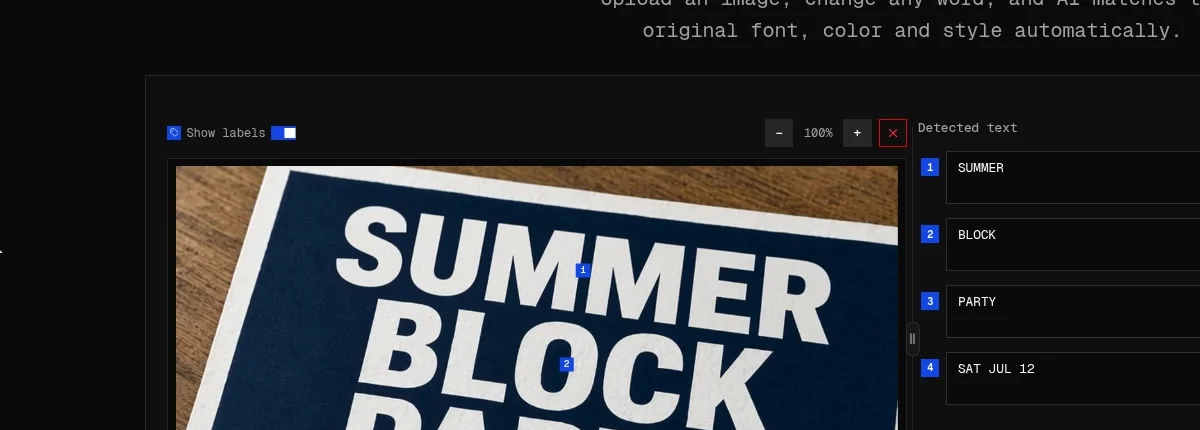
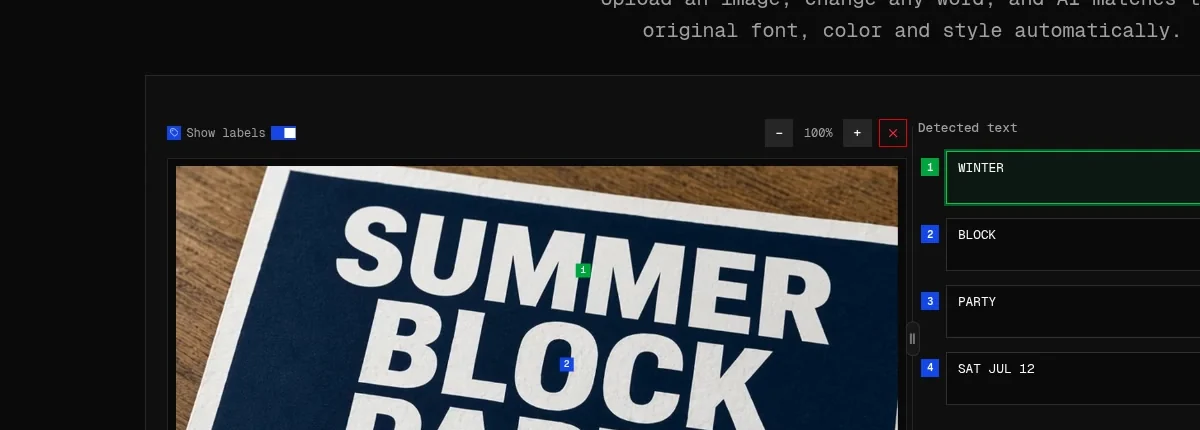
Got a batch of images? You can edit text in several images in parallel instead of waiting for each one to finish. There's nothing to install and you don't need to know the font's name. Only the lines you select change; the background, people, objects and layout stay where they were.
How to edit text in an image with the same font
This is what most people actually want: not just new words, but new words that look like they were always there. A generic text overlay gives you away right away. The letters are too clean, the color is a shade off, and the texture and shadow are missing.
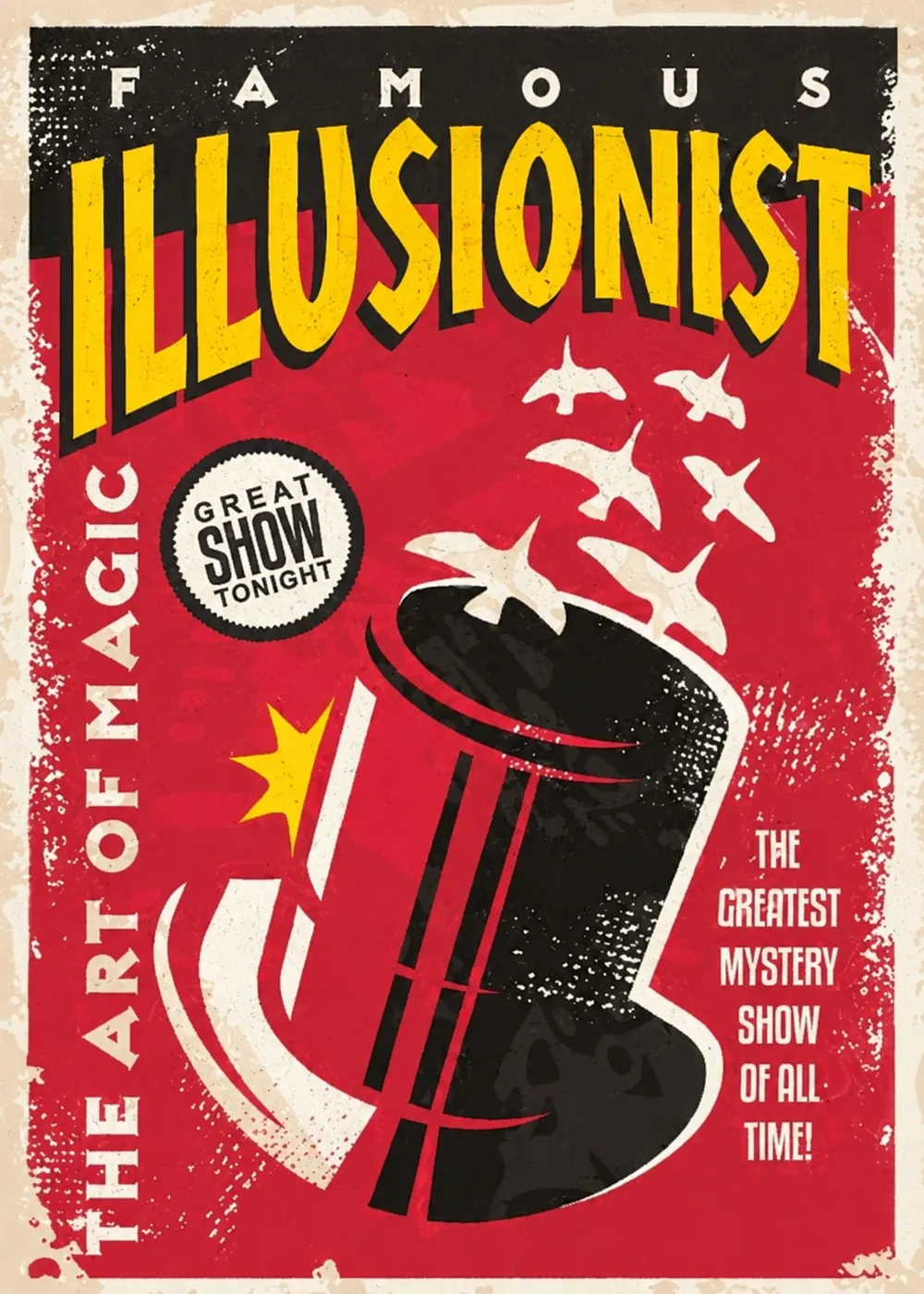
Retypit doesn't paste a font on top. When you click Edit text, it uses the original lettering as its reference and renders your new words in the same font, color and style, including the texture, shadow and perspective. That's why it works on things a font library can't cover:
- Display and decorative type on posters, packaging and signs
- Script and ornate lettering, such as wedding invites or café signs
- Textured text, like worn print, embossed labels or wood signage
- Text in photos, with lighting, angle and camera grain
Tips to get the closest result:
- Keep the length similar. Swapping "LIVE" for "JAZZ" will look more natural than swapping "LIVE" for "INTERNATIONAL". If the new text is much longer, consider a shorter wording or split it across two lines.
- Keep the case. If the original is ALL CAPS, type your replacement in caps too.
- Edit one line at a time on busy designs. For dense posters, editing headline and date separately lets you check each result.
- Use the largest, sharpest image you have. More pixels per letter gives the AI more detail of the original style to work with.
- Work on several images at once. You can process text in multiple images in parallel. Start an edit on one image, then upload the next while it runs.
- Re-run if needed. AI output can vary. If one result isn't quite right, run the same edit again before trying anything else.
How to edit text in a JPEG or PNG
JPEG and PNG files are "flat": the text is just pixels, merged with everything around it. That's why you can't click into it in a normal image viewer, and why Word or Preview can't edit it.
Retypit is built for flat files — the finished JPG, PNG or WebP is enough.
- JPEG/JPG: the most common format for photos and downloaded graphics. Heavy compression can blur small letters. Use the original, uncompressed version when you can.
- PNG: common for screenshots, logos and graphics with sharp edges.
- WebP: supported as an upload format too, which helps with images saved from websites.
The size limit is 20MB per image. Your download keeps the original resolution with no compression and no watermark.
How to edit text in a screenshot
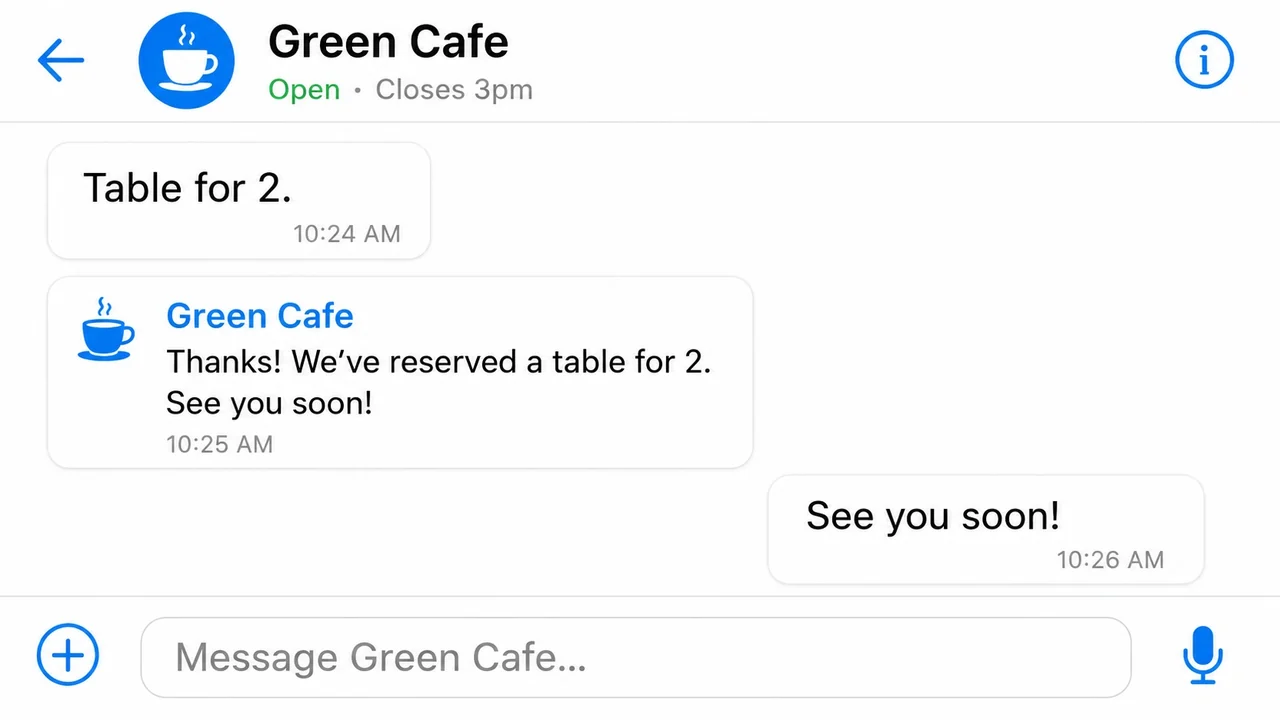
Screenshots are one of the easiest cases, because UI text is usually clean, flat and high contrast. Common jobs:
- Fixing a typo in a button label or headline before a presentation
- Updating a price, date or store name in a mockup
- Changing a caption on a social post for a template
Same three steps: upload the screenshot, click the line with the typo or label and retype it (then click Edit text), and download, with no need to rebuild the UI in a design tool.
When the font doesn't line up: 4 common problems and fixes
Even with a good tool, some images are harder than others. These are the four problems you'll see most, what causes them, and what to do.
1. The new text looks stretched or squeezed.
Cause: the replacement is much longer or shorter than the original, so the letters get compressed or widened to fill the same space.
Fix: keep the character count close to the original. Use an abbreviation ("Sat" instead of "Saturday"), or split long text across two lines.
2. The weight doesn't match (too bold or too thin).
Cause: the original line is very short or low-resolution, so there are few letters to show how heavy the stroke is.
Fix: upload a higher-resolution version. If the line sits next to similar text, select both lines together so the edit has more lettering to reference.
3. Shadows, outlines or textures are missing.
Cause: effects like drop shadows, glows or grain are spread across many pixels around the letters, and very subtle ones are harder to reproduce.
Fix: use the uncompressed original, and re-run the edit. Effects are usually captured better on larger images.
4. Strokes disappear into the background.
Cause: low contrast between letters and background (white text on a pale sky, thin script on a busy pattern) makes the edges of each letter hard to read.
Fix: crop closer to the text area before uploading, or use a sharper source. Avoid editing text that's mostly hidden behind objects.
FAQ
Is Retypit free to use?
You can try it for free. Every new account gets 1 free credit, and 1 credit = 1 edit. The free edit runs at the same speed and quality as paid credits. If you need more edits, click in the top menu to buy more credits.
Does the downloaded image have a watermark?
No. Retypit never adds a watermark, whether you use your free credit or paid credits.
Can I edit text in an image on my phone?
Yes. Retypit works in mobile browsers, so there's no app to install. For the best experience, use Safari or Chrome. Upload from your camera roll, click the text and retype it, then download.
Can I edit handwritten text or custom fonts?
Often, yes. Because Retypit references the lettering in your image rather than a font library, it can handle script, hand lettering and custom display type. Very messy handwriting or tiny text is harder; the tips in the section above help.
Can I fix misspelled text in AI-generated images?
Yes. Images from AI generators often have typos like "WELCMOE" or "COFFEEE". Upload the image, click the misspelled line and retype it, then download. Only that text changes. You don't need to regenerate the whole scene.
Will the new text automatically fit the original size?
The new text is placed in the original line's position and styled to match it. Replacements of similar length fit best. Much longer text may look compressed, so shorten it or split it across lines.
Can I edit several lines at once?
Yes. Select multiple numbered lines, retype each one, and click Edit text once.
Can I edit text in multiple images at the same time?
Yes. You can process text in several images in parallel: upload one, start the edit, then move on to the next while it runs. Each image uses 1 credit.
Does editing text reduce image quality?
No. Retypit doesn't compress your image: the download keeps the original resolution, and only the text you selected changes.
Ready to change the words in your image?
Upload an imageKeeps the original font, color and style.