
OpenAI just rolled out GPT Image / Images 2.6 (Flare and Sunburst in the API, plus ChatGPT). Faster generations, tighter edit control, animated GIFs — and one headline feature for designers: native SVG output (Image generation docs).
That last part matters. Raster PNGs are fine for posts; editable vector paths are what you drop into Figma, Illustrator, or a print file. So the natural question is: if GPT Image 2.6 can spit out SVG, can you feed it a photo of lettering and get an image to font style result — matching SVG words in that look?
Short answer: not the way most people mean “image to font.”
GPT Image 2.6 can generate SVG from a text prompt
With GPT Image 2.6 Flare or Sunburst, set output_format: "svg" on a normal POST /v1/images/generations request — see Generate SVG output. Prompt a logo mark or wordmark, get vector paths, and open the file in a design tool.
For brand-new lettering invented from a prompt — sunburst flares, clean geometric display type, a one-off lockup — that path is real. You’re not stuck exporting a blurry PNG and tracing it by hand.
Where it stops: SVG mode is not image-to-image
Here’s the catch that trips up anyone hunting for font from image or image to font generator workflows.
GPT Image 2.6’s SVG route is a generation path. OpenAI’s docs state that the image edit endpoint does not support SVG output, and an SVG is not a supported raster input for image edits (same section). In plain terms:
- You can describe the style in words and ask for SVG.
- You cannot upload a reference photo of a poster, sign, or logo and say “make my new words as SVG in this exact lettering style.”
If your brief is “copy the feel of this photographed type,” you’re back to describing it from memory — or abandoning SVG mode entirely. That’s not an image to font tool; it’s text-to-SVG.
People searching make font from image or create font from image often also expect an installable .ttf. GPT Image 2.6 doesn’t give you that either — and neither does the alternative below. Worth saying up front so expectations stay honest.
The gap: style reference in → matching letter SVG out
What a lot of designers actually need looks like this:
- You have a style image (poster, packaging, handwritten sample).
- You want new words in that same lettering look.
- You want a vector SVG you can recolor, scale, and place — not a flat regen of the whole photo.
GPT Image 2.6 covers “prompt → SVG.” It doesn’t cover “style image → SVG of my typed text.”
Alternative: Retypit’s Image to Font Generator
That’s the job Retypit’s Image to Font Generator is built for.
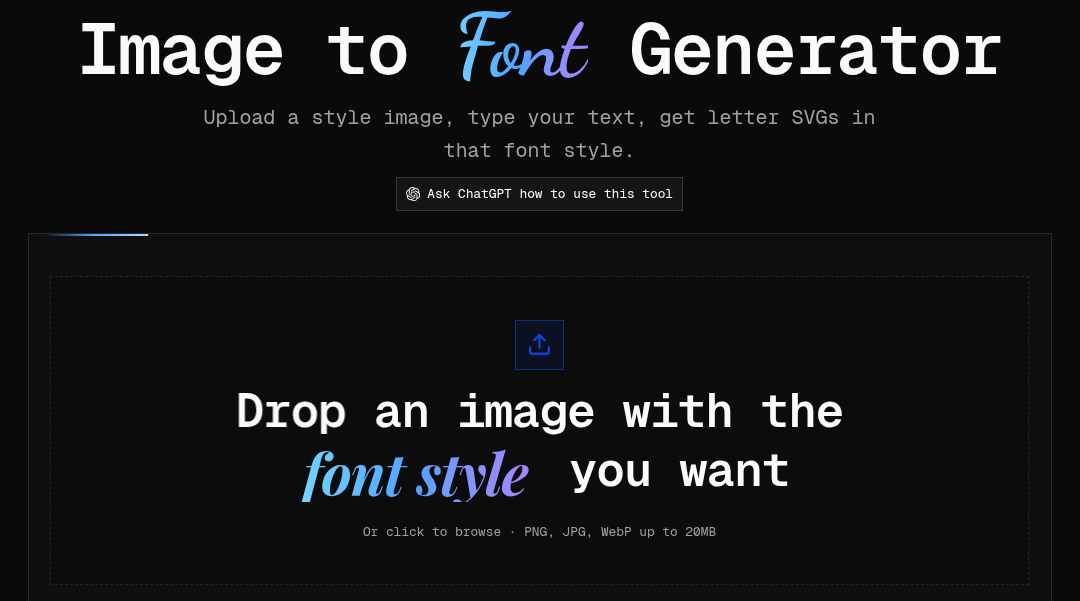
Upload a style image, type your text, get letter SVGs in that font style.
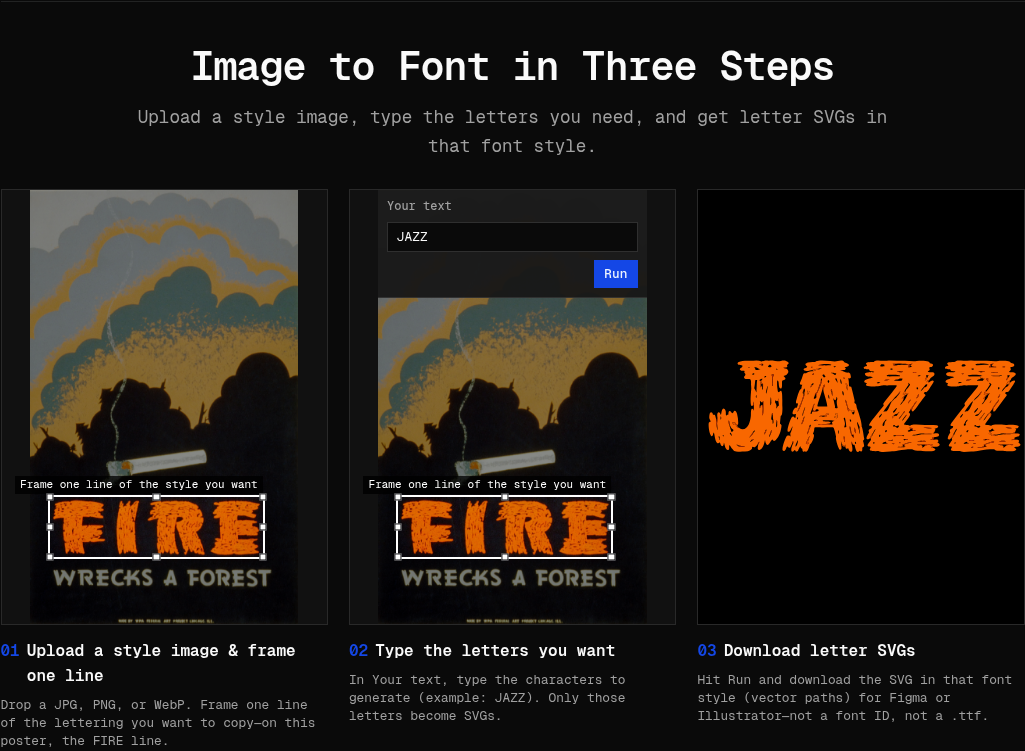
Three steps:
- Upload a style image & frame one line — Drop a JPG, PNG, or WebP and frame the line of lettering you want to match.
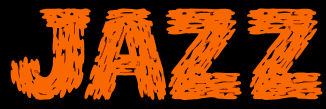
- Type the letters you want — In Your text, enter the characters to generate (for example,
JAZZ). - Run and download — Get an SVG of those words in that style — vector paths you can open in Figma or Illustrator.
Important product truth (so the SEO promise matches the tool):
- You get one SVG of the wording you typed — a vector of your words in that style.
- It is not a font ID, not an installable
.ttf/ full typeface, and not a “what font is this?” matcher. - Drop the file into any design editor and keep working.
If you came from photo to font or ai font generator searches expecting a downloadable font family, this is different — and usually closer to what production work needs: a clean, editable SVG lockup that matches a reference, without rebuilding every glyph as a desktop font.
When to use which
| Need | Better fit |
|---|---|
| Invent new SVG lettering from a written prompt | GPT Image 2.6 SVG generation |
| Match a reference image’s lettering as SVG of your words | Retypit Image to Font |
Installable .ttf / full character set | Neither — look for a real font foundry or custom type pipeline |
| Identify the font name in a photo | Font-finder tools — not Retypit, not GPT Image SVG |
Try it
Have a poster, logo, or scrap of lettering you love? Open the Image to Font Generator, frame that line, type your copy, and download the SVG. GPT Image 2.6 made text-to-SVG easy; Retypit covers the image to font style jump the SVG mode still can’t.