
How to Change Text in an Image Without Redesigning It
Quick answer: Here’s how to change text in an image in three steps with Retypit: 1. Upload your image—Retypit detects every line. 2. Click the line you want to change and retype it, then click Run. 3. Download—the new words keep the same font, color and style. No install, no PSD, and you do not need the font name.
JPG, PNG or WebP · Max 20MB
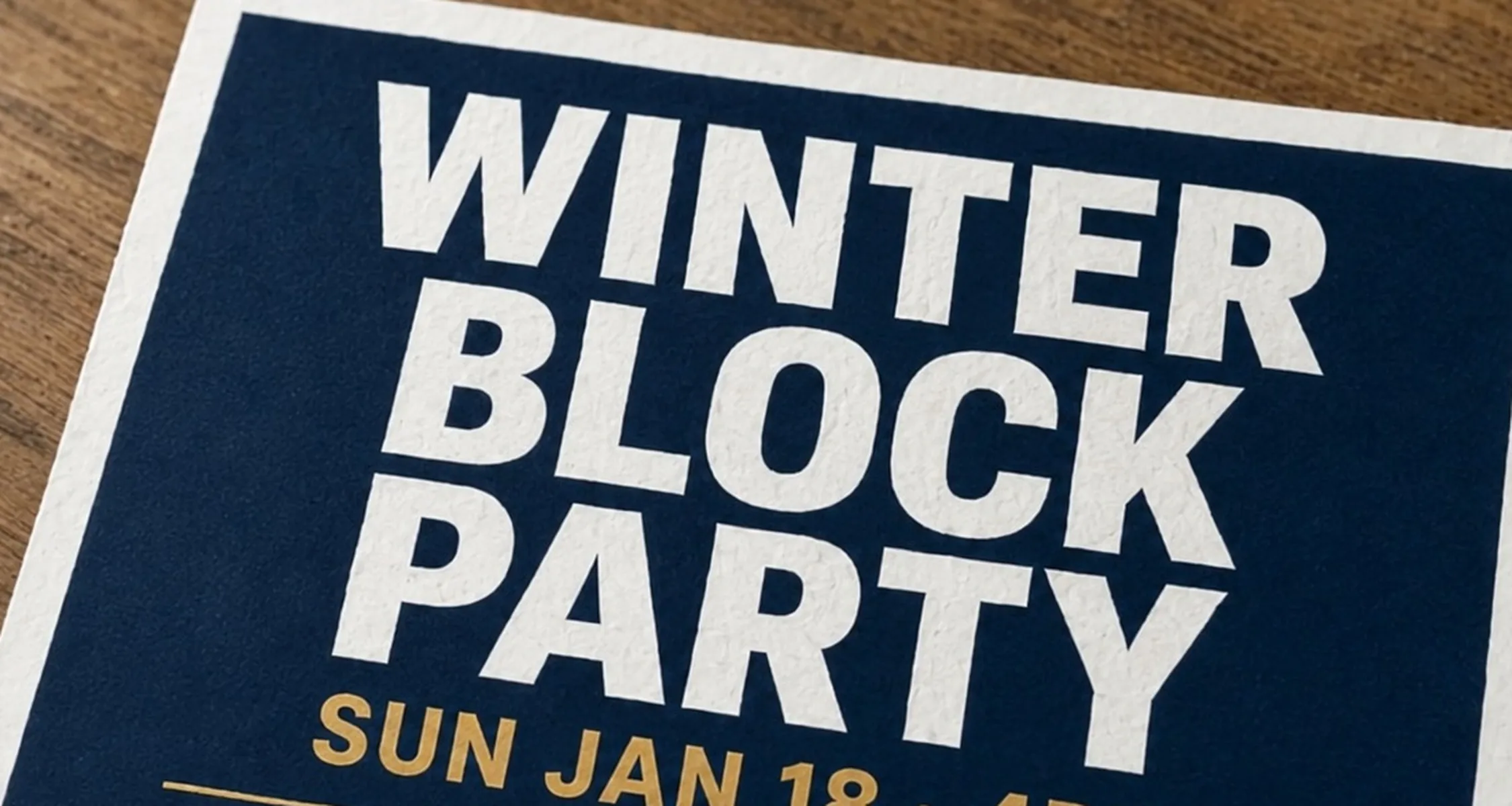
How to change text in an image (3 steps)
Changing text in an image means rewriting words that are already part of the picture—on a poster, screenshot, menu, label or meme—without rebuilding the design. Retypit does that in the browser on a flat JPG, PNG or WebP.
Upload Your Image.
Open Retypit and drop in a JPG, PNG or WebP up to 20MB. Retypit analyzes the image and numbers every line of text it finds.
Click the Text and Retype It.
Select the numbered line (or several lines), type the new wording, and click Run.
Download the Result.
Open your history and download. The new words keep the original font, color and style. The download keeps the original resolution, with no watermark.
Only the lines you select change. Faces, backgrounds, objects and layout stay where they were.
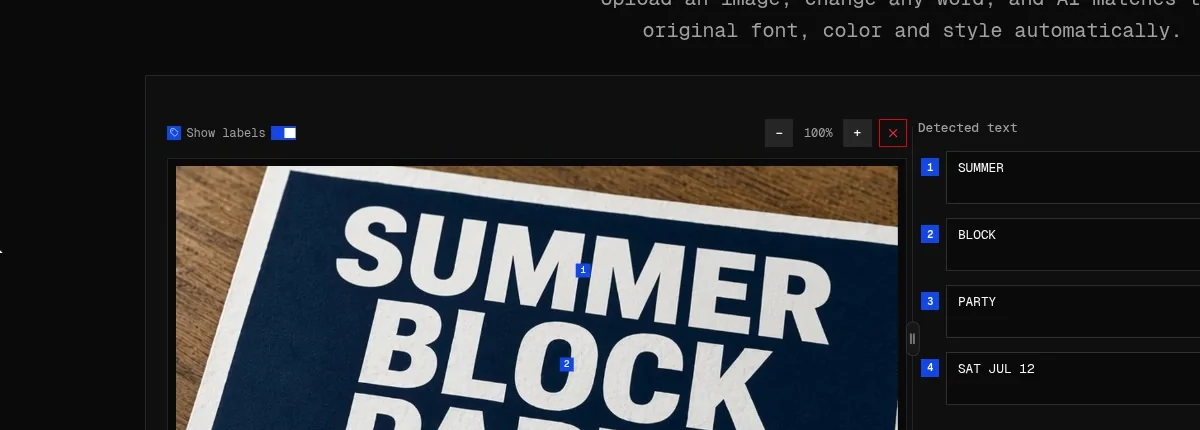
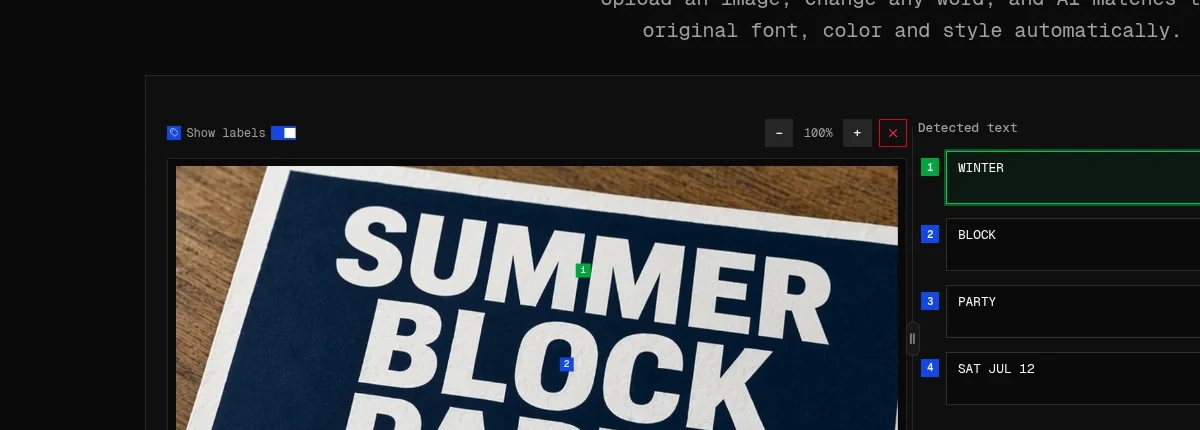
Change existing text—don’t paste a new overlay
Most “add text” tools drop a fresh font on top of the picture. That looks like a sticker: wrong weight, flat color, missing shadow and texture.
When you change text in an image with Retypit, you are not layering type. You rewrite the line that is already there. On Run, Retypit uses the original lettering as the reference and rebuilds your new words to match—font, color, texture, shadow and perspective included. You do not hunt for a font file or open a layered PSD.

That is why it works on:
- Event posters and flyers (headline, date, venue)
- Screenshots and UI mockups (buttons, nav labels, captions)
- Menus and price lists photographed as a flat image
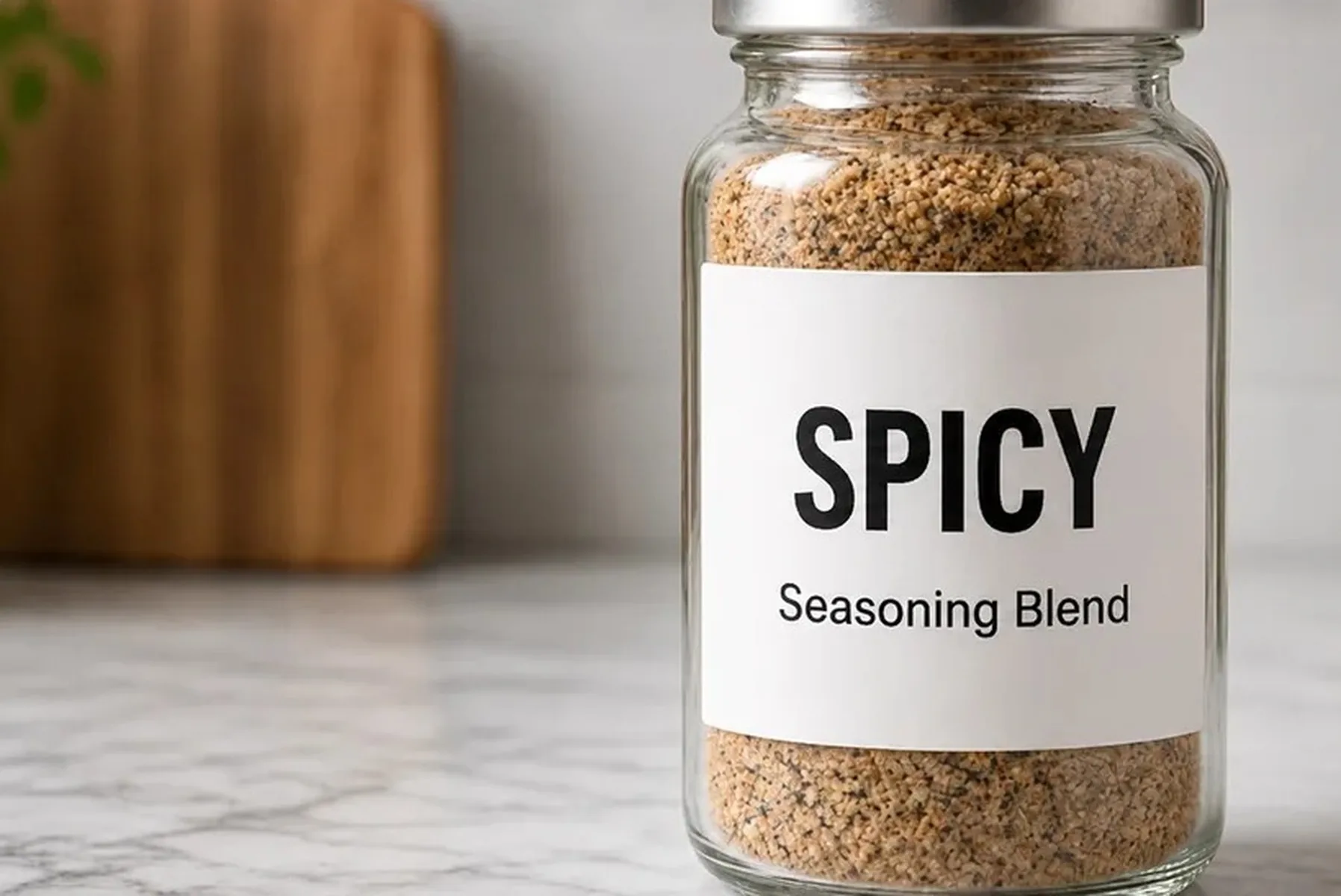
- Product labels and packaging shots
- Memes and social graphics
- AI-generated images with typos or broken letters
For a deeper walkthrough of matching style, see how to edit text in an image and keep the same font .
Common ways people change text in an image
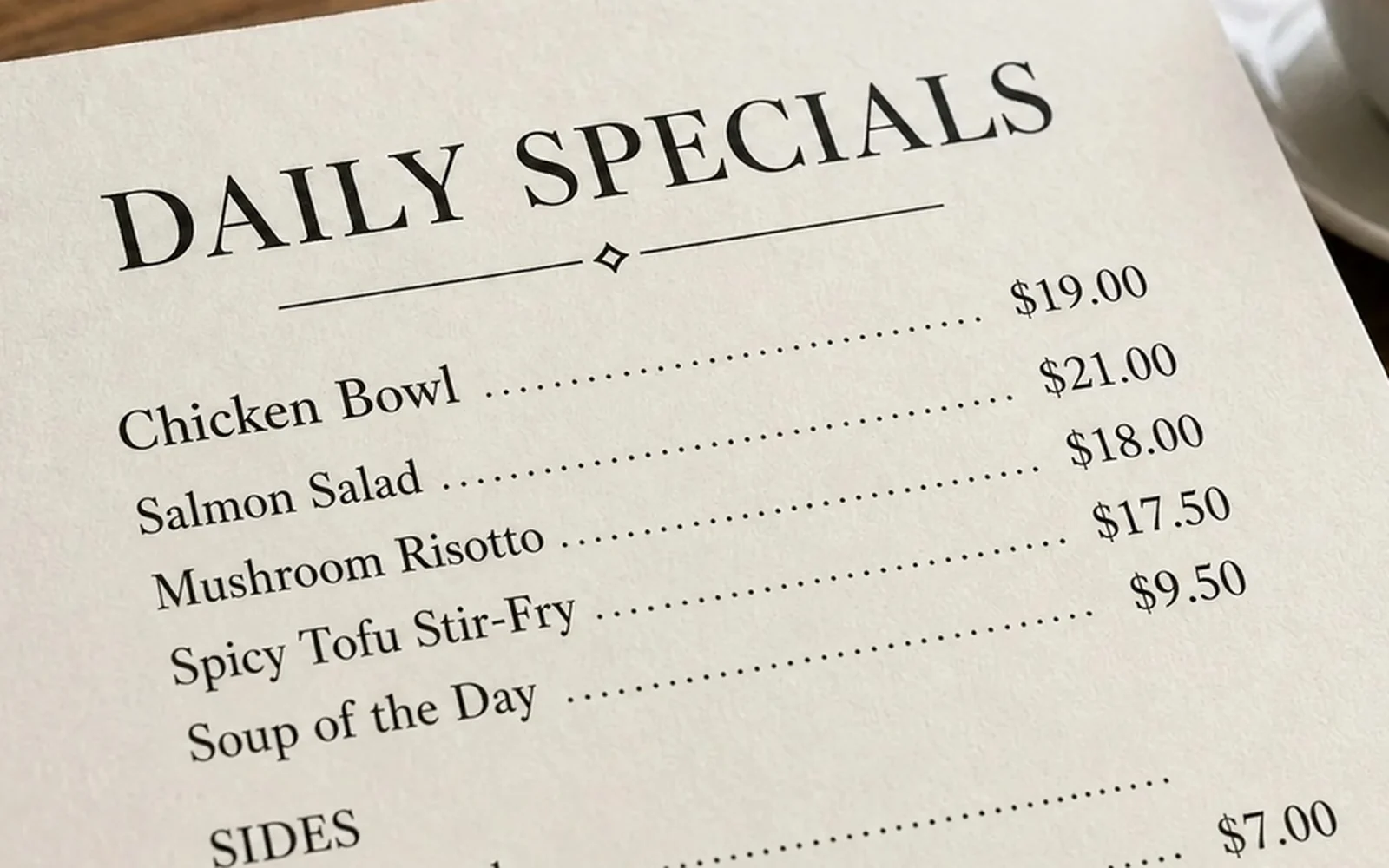
Update a date, name or price
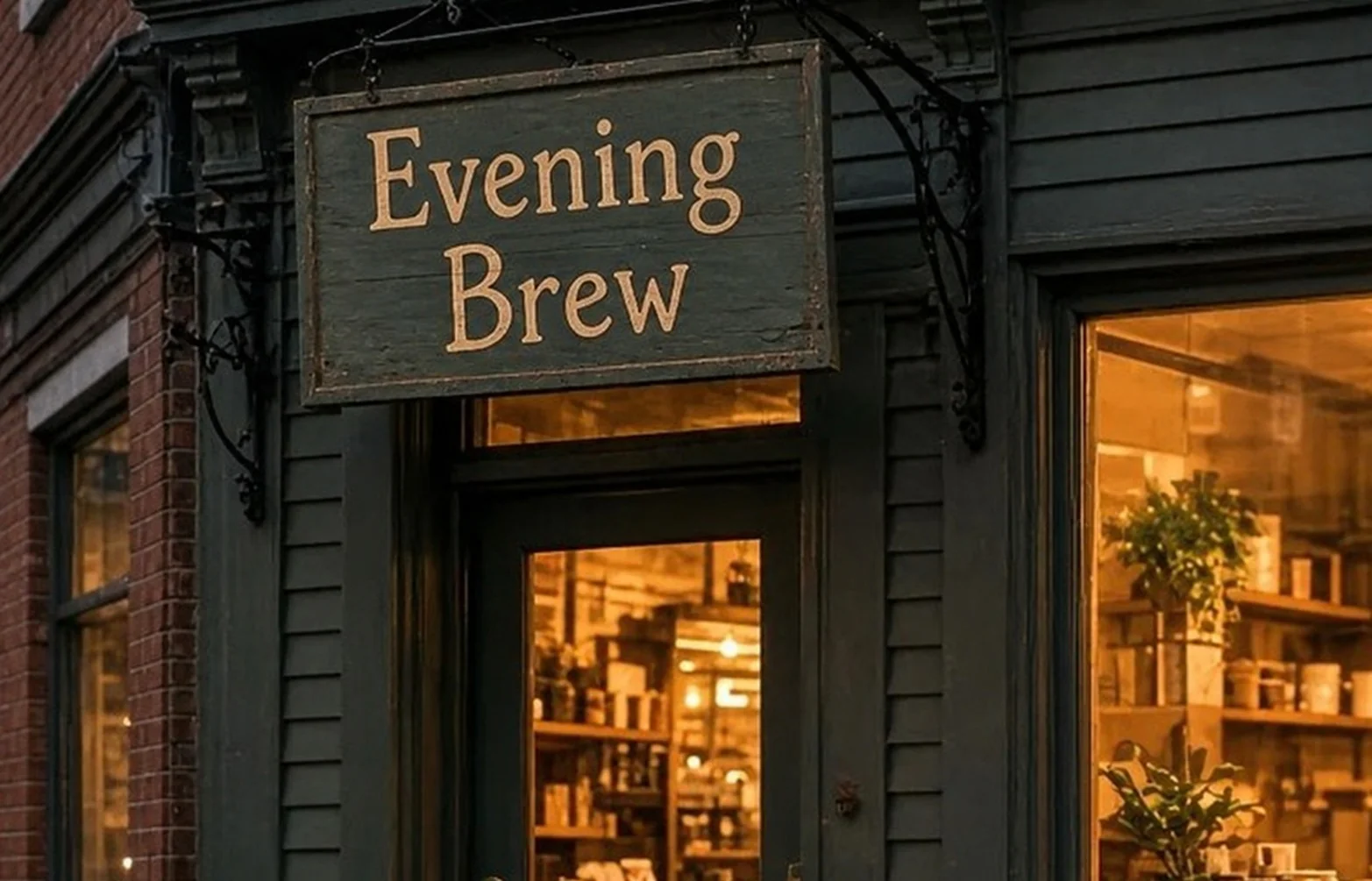
You already have the finished graphic. Only one fact changed. Upload the image, select that line, type the new date, name or price, and run. Typical swaps: event date on a flyer, store name on a sign photo, menu prices on a photographed menu.
Fix a typo or garbled letters
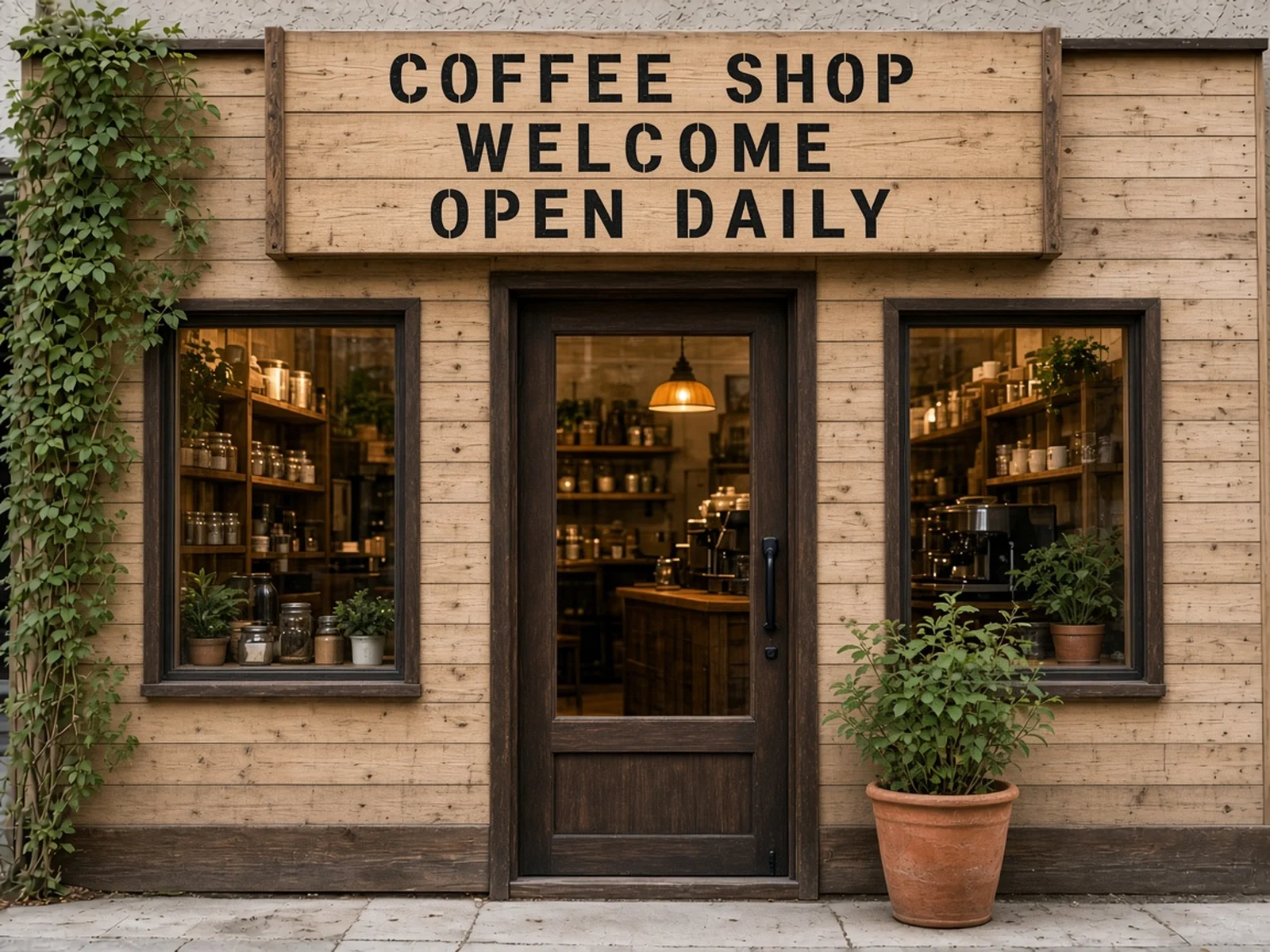
Misspellings in a button label, headline or AI-generated sign are common. Select the bad line, type the correct spelling, and run. You do not regenerate the whole scene.
Change a CTA or caption
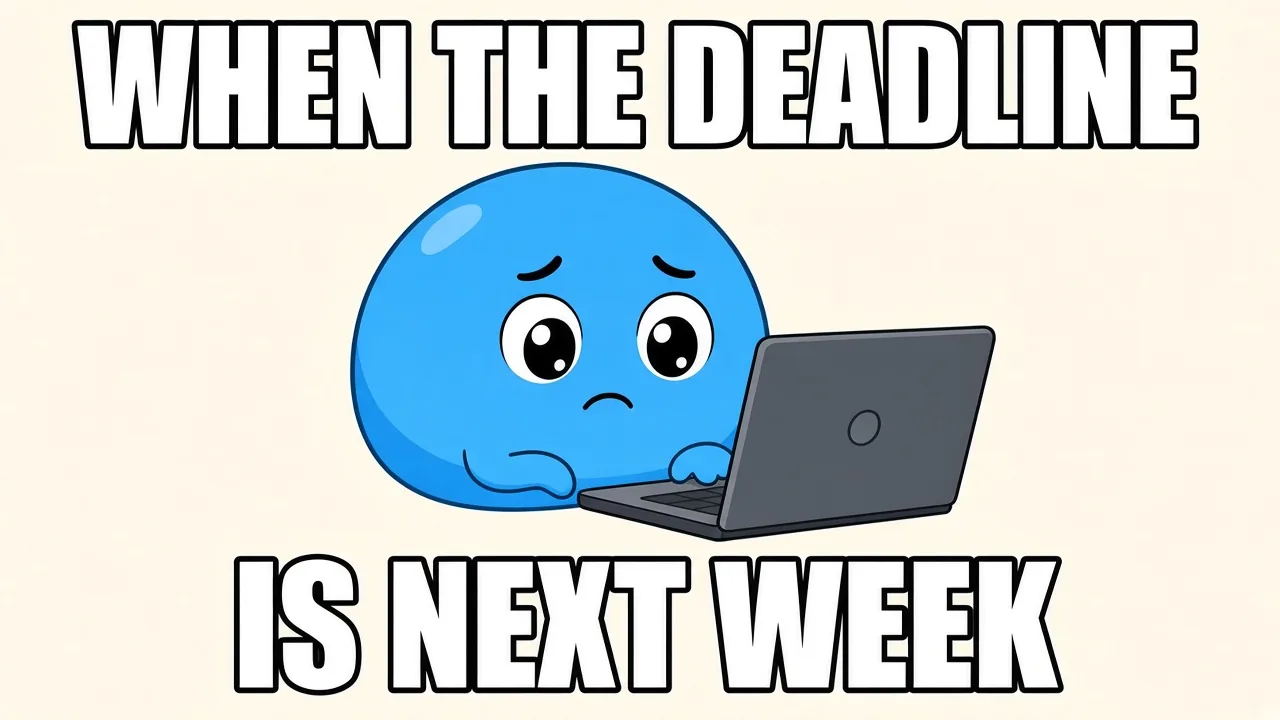
Swap Sign up for Join free, or refresh a meme caption, while the rest of the layout stays put.

Refresh a poster without a redesign
Change the headline from SUMMER to WINTER, or LIVE to JAZZ, and keep the same display lettering. If the new phrase is much longer, shorten it or split it across two lines so spacing stays natural.

Tips for a natural-looking change
- Keep a similar length. Close character counts fit the original space better.
- Match the case. If the line is ALL CAPS, type the replacement in caps too.
- Change one busy line at a time. On dense designs, run headline and date separately so you can check each result.
- Use the sharpest file you have. More pixels per letter give a closer match to the original style.
- Re-run if needed. Results can vary; try the same edit again before changing your wording.
- Batch when you can. You can process text in several images in parallel: start one run, then upload the next while it works.
Change text vs remove text
- Change / replace: you want new words in the same place and look. Use the homepage editor: upload → retype → Run → download.
- Remove only: you want the words gone and the background filled. Use Text Remover .
Need letter SVGs in that font style for design tools? Use Image to Font —upload a style image, type your text, get letter SVGs (not a font ID or .ttf).
JPEG, PNG and screenshots
Finished images are flat: the text is pixels, not a live text layer. That is why Word or Preview cannot change it. Retypit edits the flat file directly.
- JPG / JPEG — photos and downloaded graphics; prefer an uncompressed original when letters are small.
- PNG — screenshots, logos and sharp UI text.
- WebP — images saved from the web.
Limit: 20MB per image. Works in desktop and mobile browsers (Safari or Chrome). No app to install.
FAQ
How do I change text in an image?
Upload the image to Retypit, select the numbered line you want to change, retype it, click Run, and download. The new words keep the same font, color and style.
How is changing text different from adding text?
Adding text usually pastes a new font on top. Changing text rewrites a line that is already in the picture so the result still matches the original look.
Can I change text in an image and keep the same font?
Yes. On Run, Retypit references the original lettering and rebuilds your new words to match. You do not need the font name or a PSD.
Can I replace text in a photo or picture without Photoshop?
Yes. Upload the photo or picture, click the line, type the replacement, and run. No layers and no desktop install.
Can I change several lines at once?
Yes. Select multiple numbered lines, retype each one, and click Run once.
Will the rest of the image stay the same?
Retypit is built to change only the lines you select. Backgrounds, people and objects are meant to stay; always check the preview before you download.
What file types are supported?
JPG, PNG and WebP, up to 20MB. Downloads keep the original resolution and have no watermark.
Change text in an image in a few clicks
Upload an imageJPG, PNG or WebP · Max 20MB