Fix Garbled Text in an AI Image Without Regenerating It
Quick answer: If an AI-generated image is usable except for the letters, you do not have to generate a new picture. Upload the image to Retypit, click the broken line, type the words you meant, and click Run. Retypit aims to change only the lines you select and preserve the rest of the picture. Always check the preview before you download.
JPG, PNG or WebP · Max 20MB
When the picture is right and the letters are not
AI-generated images often look finished until you read the sign, label or headline: a letter turns into a box, two characters swap, or a word is close to the intended spelling but still wrong. Generating the image again can fix those letters and also change the lighting, the composition, or objects you already liked.
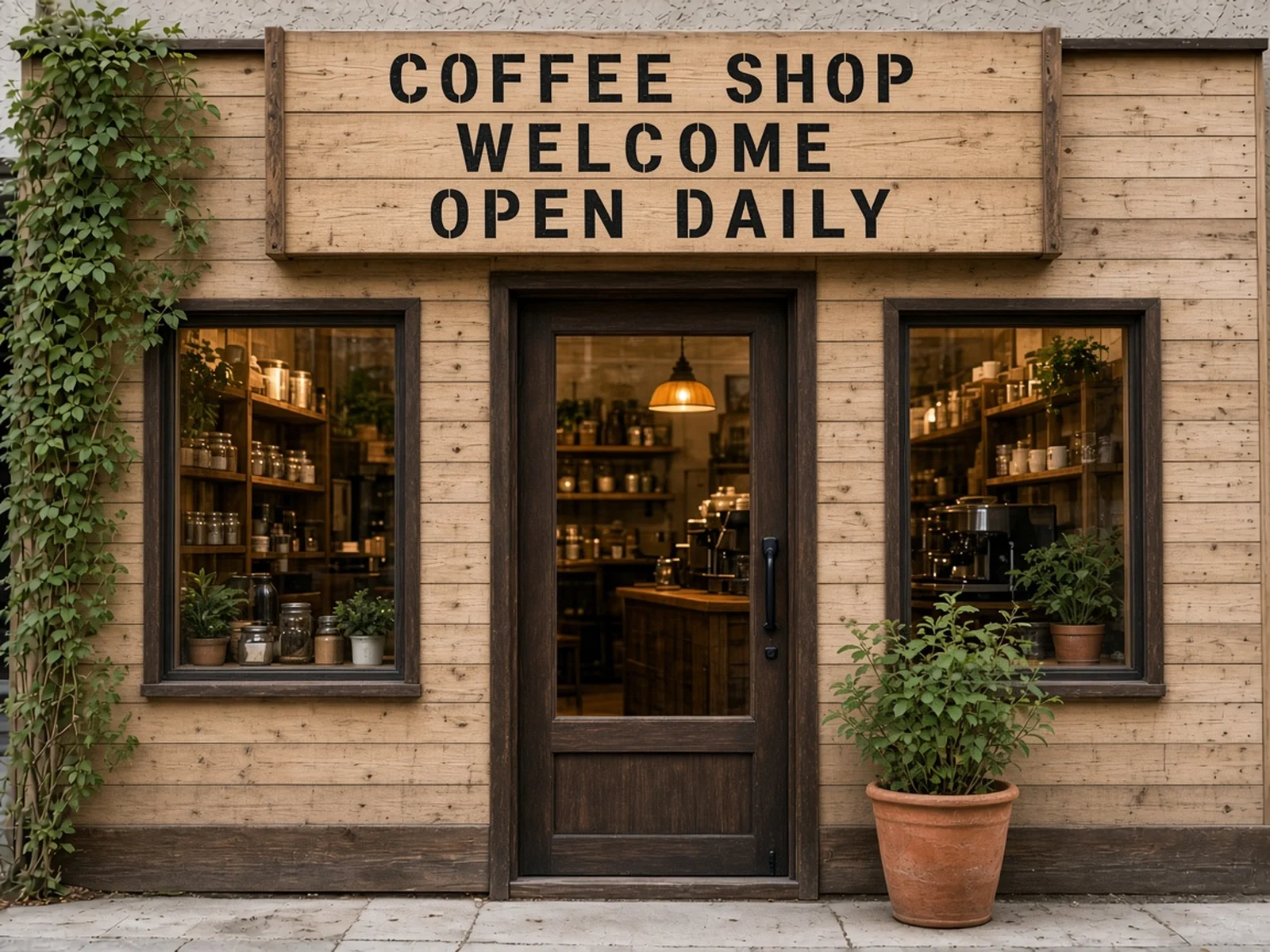
This page is for that job: keep the picture you have, and rewrite only the broken text. The example above is the storefront already shown on the Retypit homepage — a wooden coffee-shop sign in stencil lettering. The top line, COFFEE SHOP, was left alone. The broken lines were retyped as WELCOME and OPEN DAILY.
How to fix the letters (3 steps)
You work on the flat image file in the browser. Retypit accepts a JPG, PNG or WebP up to 20MB. You need to sign in to edit.
- Upload the image. Open Retypit and drop in the AI-generated picture. Retypit detects the lines of text it can find and numbers them.
- Click the line and retype it. Select the numbered line that is broken — or several lines, if more than one phrase is wrong. Type the wording you meant, then click Run.
- Download the result. When the run finishes, open your history and download the edited image. There is no watermark.
For a fuller walkthrough of the editor, see how to edit text in an image and keep the same font. For the same steps on any photo or graphic, see how to change text in an image.
What to type
Type the words you intended, in the same case as the original line. On the storefront sign, the lettering is all caps, so the replacements are WELCOME and OPEN DAILY, not mixed case.
Keep the new wording close in length to the line you are replacing. A much longer phrase can look cramped in the same space; a much shorter one can look sparse. If two lines are wrong, you can select both, retype each one, and click Run once.
If Retypit misreads a broken character when it numbers the lines, still type the correct word in the replacement. You are telling it what the line should say, not confirming the garbled spelling.
Check the result before you use the image
After Run, look at the edited lines and at everything you did not mean to change:
- The new words should be readable and in the same case as the original line.
- Nearby unedited lettering — here, COFFEE SHOP — should still match the sign as you remember it.
- The rest of the picture (the shop front, windows, door, plants, lighting) should look unchanged.
- If a letter still looks off, try the same edit again before you change the wording.
Retypit aims to preserve everything you did not select. Always check the preview before you download.
What this page is not
This is not a new image generator, and it will not invent a different scene. It is not a font identifier, and it does not give you a font file to download.
Tiny letters, type that is almost unreadable, or characters that are heavily warped into the background are harder to fix. We do not claim that every broken line in every generated image can be repaired. If the letters are too far gone to read, you may still need a new image.
Use this on pictures you are allowed to edit. Do not use Retypit to alter official or identity documents.
If you want the letters gone instead
To erase a line and fill the background, rather than rewrite it, use Text Remover. To change ordinary typography on a photo, poster or screenshot — not only AI art — edit text in an image.
FAQ
Do I have to generate the image again to fix the text?
No. If the rest of the picture is already usable, upload that file, retype the broken line, and click Run. Generating a new image is only needed when you want a different scene, or when the letters are too broken to work from.
Can I fix more than one broken line at once?
Yes. Select each numbered line you want to change, retype it, and click Run once. On the storefront example, WELC□ME and OPNE OAILY are two lines on the same sign.
Will the rest of the picture stay the same?
Retypit aims to change only the lines you select and preserve the rest of the picture. In the published example, the shop front, windows, door and the unedited COFFEE SHOP line are unchanged. Always check the preview before you download.
What file types can I upload?
JPG, PNG and WebP, up to 20MB. You need to sign in to edit. You can change several lines in the same image in one Run.
What if I only want the text removed?
Use Text Remover when the words should disappear and the background should be filled, instead of being rewritten.
Fix the letters, keep the picture
Upload an imageJPG, PNG or WebP · Max 20MB