
Change Label Text on a Product Photo and Keep the Same Lettering
Quick answer: When a word on a product-label photo is wrong or outdated, you do not have to reshoot the pack. Upload the JPG, PNG or WebP to Retypit, click the line, type the new wording in the same language, and click Run. If the photo will describe a real product, check every edited word against that product before you reuse the image.
JPG, PNG or WebP · Max 20MB
When you already have the pack shot
A product photo is a flat image. The words on the label are pixels on the jar, not a separate layer you can open in a packaging file.
This page is for a same-language change on a pack shot you own or are allowed to edit — a flavor word, a short descriptor, or another line that should match the product you actually have. It is not a translation tool, and it is not a menu-price update (that job is update a menu image). For the method and matching lettering, see the same-font tutorial. To edit text in an image from any photo, start on the homepage.
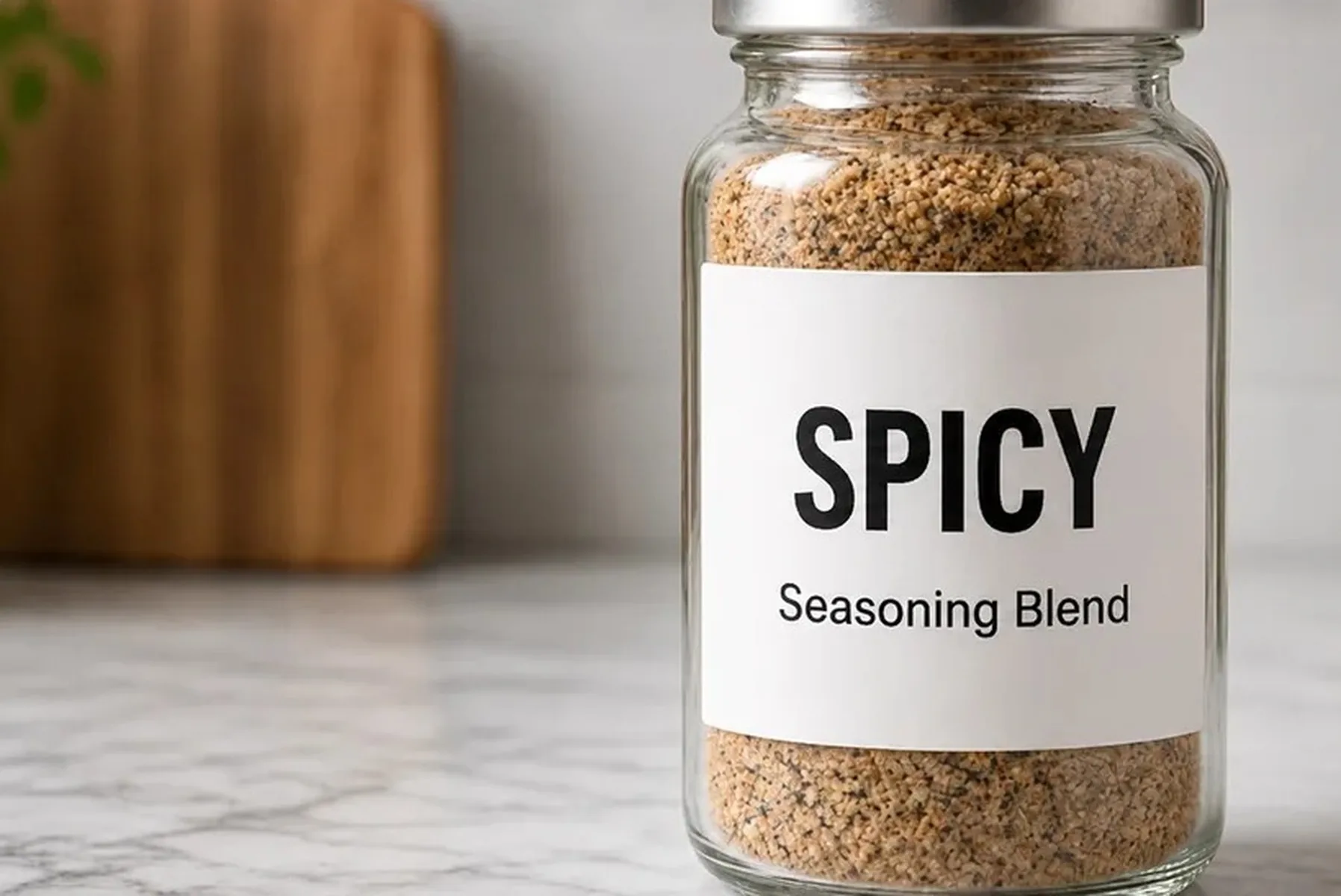
The example above is the glass jar already used on Retypit. Only the large line was rewritten: CLASSIC became SPICY. The smaller line, Seasoning Blend, was left as it was. No brand name is visible on this label, and this page does not invent one.
How to change the label text (3 steps)
You work in the browser. Retypit accepts a JPG, PNG or WebP up to 20MB. You need to sign in to edit.
- Upload the product photo. Open Retypit and drop in the file. Retypit detects the lines of text it can find and numbers them.
- Click the line and retype it. Select the numbered label line, type the new wording in the same language and the same case, and click Run. If more than one line needs to change, select each one and run them together, or do them one at a time so you can check each result.
- Download the result. When the run finishes, open your history and download the edited image. There is no watermark.
If the pack shot is a photographed JPEG, how to edit text in a JPEG walks through the same editor with more on flat photo files. For the general steps, see how to change text in an image.
Type the new word the same way as the old one
Match the case and the length of the line you are replacing. On this jar the large line is all caps, so the replacement is SPICY, not Spicy. CLASSIC and SPICY are similar in length, which helps the word sit in the same space on the white label.
If the new wording is much longer, it can crowd the label; if it is much shorter, it can look sparse. Shorten the phrase and run again rather than leaving a squeezed line. Leave any line you do not intend to change unselected — here, Seasoning Blend.
Check the wording against the real product
Editing a photo does not change the product in the jar, and it is not a packaging or labeling review. Before you use the image in a listing, an ad, or any other public place:
- Confirm every edited word matches the actual goods — the flavor or product name, and any other fact you changed.
- Do not use the edit to make a photo say something the product is not.
- Confirm lines you did not mean to change, such as Seasoning Blend in this example, are still correct.
- Look at the jar, the lid, the contents, and the edges of the letters for marks you did not intend.
- If a line looks tight or off, try that line again before you change the wording.
Retypit aims to preserve everything you did not select. Always check the preview before you download. This is not a promise that unselected areas never change, that the type matches a font file, or that the result is print-ready artwork.
If you still have a packaging design file with selectable type, and you need a new physical label, edit that source file instead of relying on a photograph.
If you need another language, or the words gone
To replace label text with a translation and keep the original lettering, use Translate Text in Image. That is the better starting point when the job is a language version, not a same-language word swap.
To erase a line and fill the label background, rather than rewrite it, use Text Remover.
FAQ
Can I change a product label without reshooting the photo?
Yes, if you already have a pack shot you are allowed to edit. Upload the JPG, PNG or WebP, click the line, retype it, and click Run. You still need to check that the new wording matches the real product before you reuse the image.
Will the rest of the label and the jar stay the same?
Retypit aims to change only the lines you select. In the published example, Seasoning Blend, the jar, the lid and the contents stay as they were, and only CLASSIC becomes SPICY. Always check the preview before you download.
Is this the same as translating a product photo?
No. This page is a same-language edit on a label you already have. For a language version of a package or ad, use Translate Text in Image.
Does this replace a packaging design file?
No. Retypit edits the flat product photo. It does not create a dieline, a print-ready label, or a compliance check. If you have a source file with live type and you need new printed labels, edit that file.
What file types can I upload?
JPG, PNG and WebP, up to 20MB. You need to sign in to edit. Retypit does not edit a PDF as a document.
Update a product-label photo in a few clicks
Upload a product photoJPG, PNG or WebP · Max 20MB