
Edit Text in an Image by Clicking, Not Prompting
Quick answer: You can edit text in an image without writing a prompt like “change CLASSIC to VINTAGE.” Upload the picture to Retypit. It detects every line of text, you click the line you want and retype it, then click Run. The new words keep the original font, color and style.
JPG, PNG or WebP · Max 20MB

Most tools ask you to describe the change
If you have used a prompt-based image editor, the usual request looks like this: “change the word CLASSIC to VINTAGE.” You have to name the old text, spell the new text, and hope the model finds the right letters.
That gets messy on a real picture. A poster can hold a headline, a date, a block of body copy and a row of specs. A written prompt may pick the wrong line, restyle more than you asked, or miss a word that is stacked, outlined or set vertically. You are describing a layout the tool cannot see as clearly as you can.
Retypit detects the text first
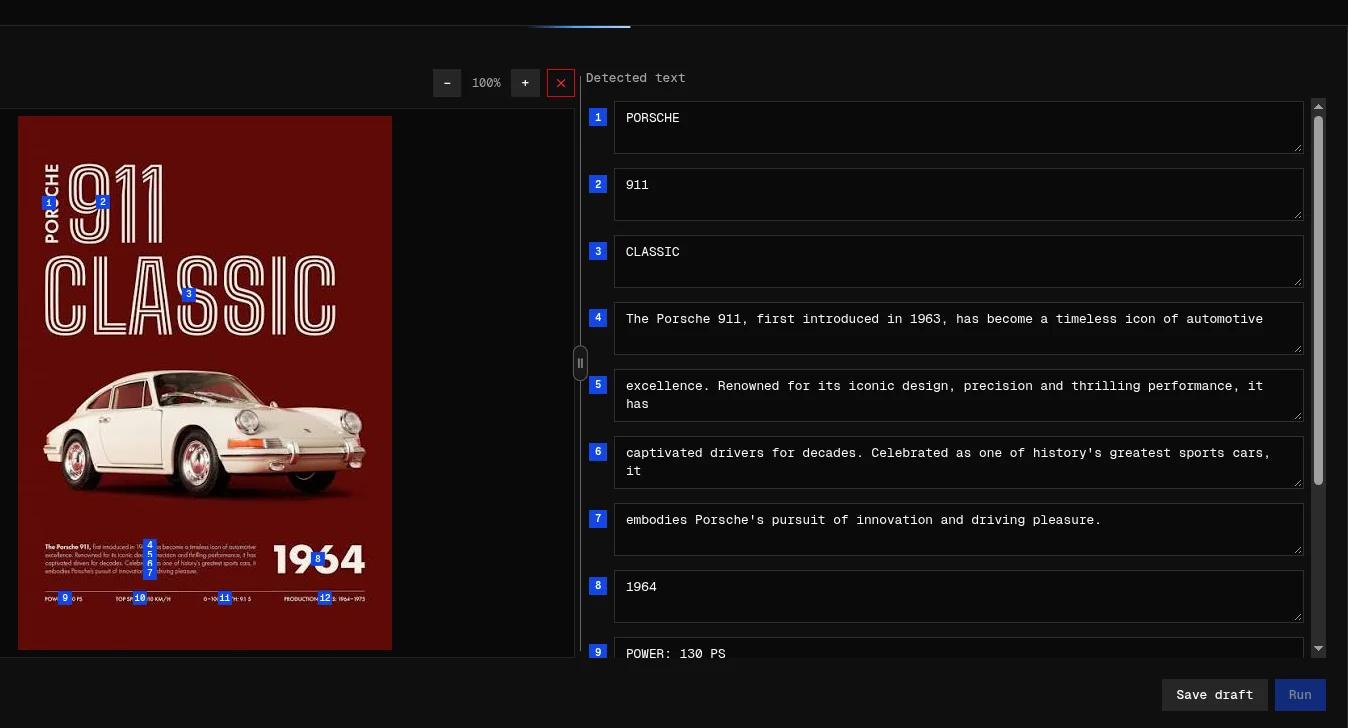
Retypit is built to edit text already inside a flat image. After you upload a JPG, PNG or WebP (up to 20MB), it finds the words in the picture and numbers each line. You see the typography in place—headline, date, captions, small print—before you change anything. You do not have to describe where the text is.
On this car poster, detection found 12 lines: the vertical PORSCHE, 911, CLASSIC, four lines of body copy, the year 1964, and the spec labels along the bottom.
Click the line and retype it
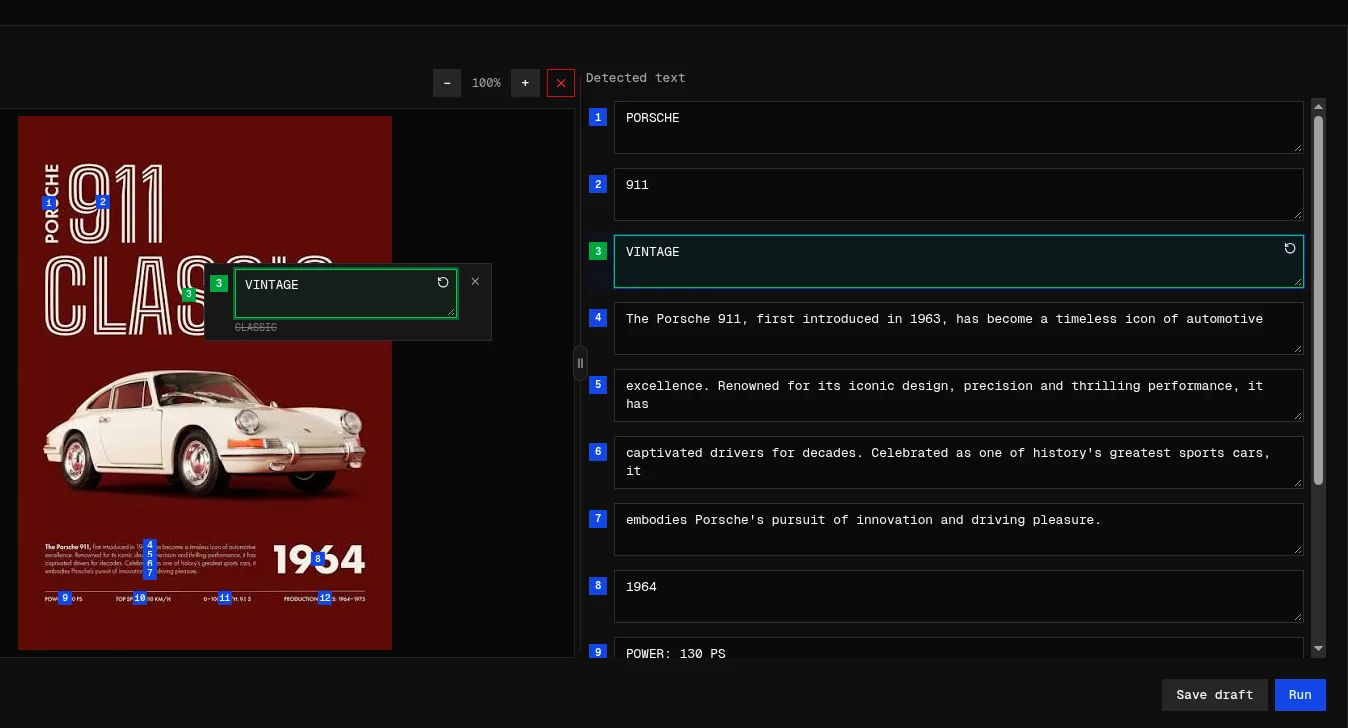
You do not write “change XXX to YYY.” You click the line—here, line 3, CLASSIC—and type the new wording in the field. In this run, that word was VINTAGE. The original text stays visible until you run, so you can check you selected the right line. Then click Run.
The outlined display word became VINTAGE in the same all-caps, multi-stroke lettering. PORSCHE, 911, the car, the large 1964, and the bottom specs stayed in place.
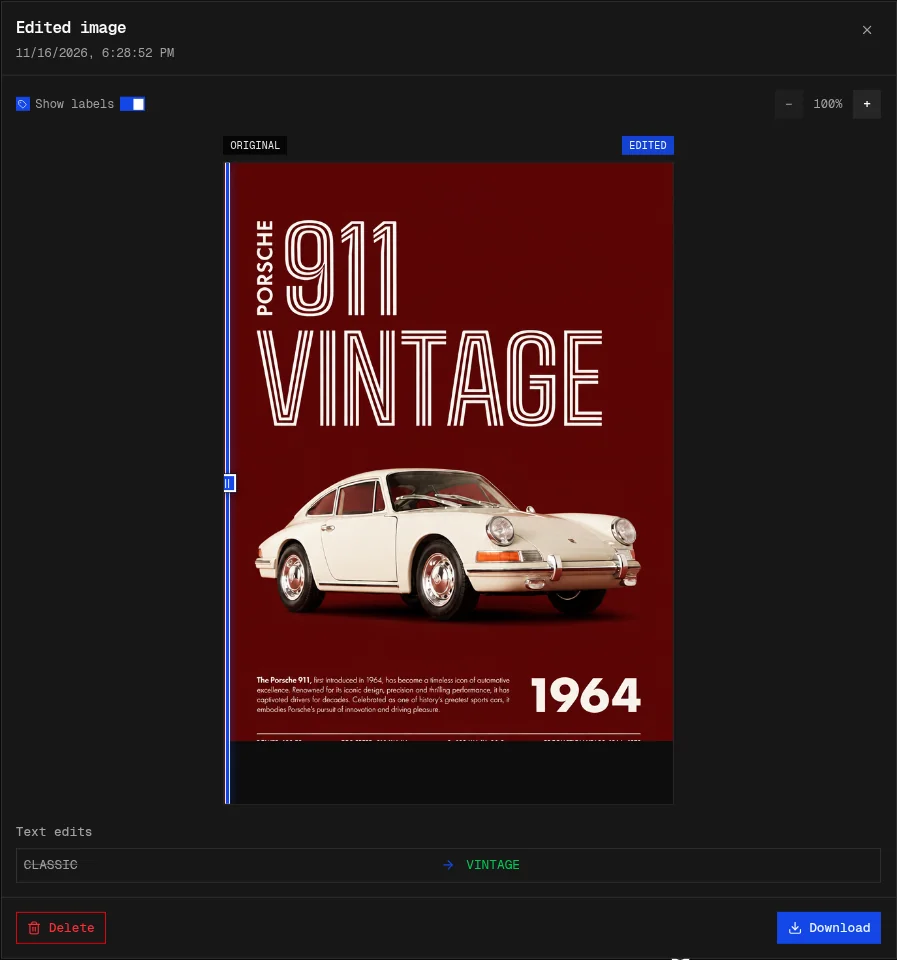
This example was run on 16 November 2026 from a 374×534 JPEG. The download was a 688×976 PNG, with no watermark.
Why clicking is faster than writing a prompt
- You see every line before you edit, instead of hoping a prompt finds the right word.
- Clicking a numbered line is more precise on a busy poster than describing “the big outlined word under 911.”
- You type only the new wording. You do not also have to restate the old wording, the style, or what to leave alone.
- The original letters are the reference, so you do not need the font name, a PSD, or a design file.
If you want the three-step walkthrough, see how to change text in an image. For a closer look at matching font, color and style, see how to edit text in an image and keep the same font. To update seasonal wording on a finished flyer, see refresh a poster or flyer.
Check the rest of the image after you run
This run selected only CLASSIC. The headline change is the one we asked for. The body copy also shifted the year from 1963 to 1964—a line we did not edit.
After you download, read the nearby small text, especially if the upload is small. If another line moved, you can select that line and run again. A larger, sharper original usually gives Retypit more of the lettering to work with.
FAQ
Do I need to write a prompt to edit text in an image?
No. Open Retypit, upload the image, click the detected line, retype it, and click Run. You do not describe the change as “change XXX to YYY.”
How does Retypit find the text in the image?
After you upload, it detects the text already in the picture and numbers each line. Turn on Show labels to see the markers on the image.
Will the new words keep the same font and style?
The new words are meant to keep the original font, color and style. In this poster, VINTAGE kept the outlined, all-caps display style of CLASSIC.
What files can I upload?
JPG, PNG or WebP, up to 20MB. In this run the download was a larger PNG with no watermark.
Can I change more than one line?
You can select a line, or more than one, type the new wording, and click Run. This example changed a single headline.
Edit text in an image without writing a prompt
Upload an imageJPG, PNG or WebP · Max 20MB