
Refresh a Poster or Flyer and Keep the Same Lettering
Quick answer: When only the season, date, or a short line on a poster or flyer has changed, you do not need to rebuild the layout. Upload the JPG, PNG or WebP to Retypit, click the headline or date, type the new wording, and click Run. Then check the whole flyer before you post or print it.
JPG, PNG or WebP · Max 20MB
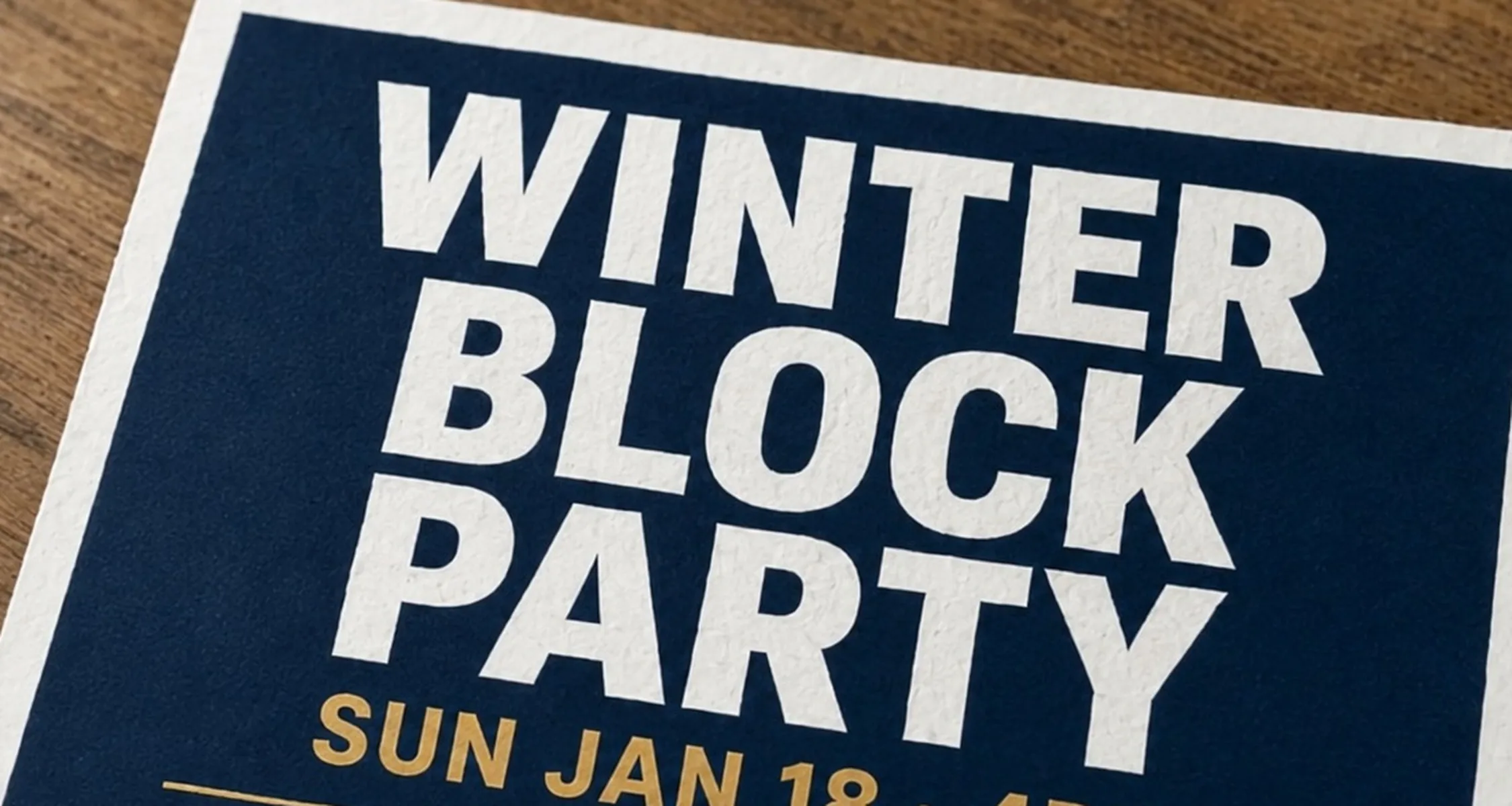
When the poster is already finished
A photographed or exported poster is a flat image. The headline and date are part of the picture, not a text box you can open in a layout file.
This page is for a poster or flyer you already have — usually a seasonal word, an event date, or a short line you are allowed to change — when you want to keep the existing lettering. It is a specific task, not a full walkthrough of the editor. For the method and matching lettering, see the same-font tutorial. To edit text in an image from any photo or graphic, start on the homepage.
The example above is the navy BLOCK PARTY flyer already used on Retypit. Only two visible lines were rewritten: SUMMER became WINTER, and the gold date changed from SAT JUL 13 to SUN JAN 18. BLOCK and PARTY were left alone.
If you still have the original design file and the type is still selectable, edit that file and export a new image. Use Retypit when the finished flat photo or export is what you have.
Use this on a poster or flyer you own or are allowed to edit. It does not edit a PDF as a document, and it does not give you a print-ready vector file.
How to update the poster (3 steps)
You work in the browser. Retypit accepts a JPG, PNG or WebP up to 20MB. You need to sign in to edit.
- Upload the poster or flyer image. Open Retypit and drop in the file. Retypit detects the lines of text it can find and numbers them.
- Click the line and retype it. Select the numbered headline, date, or other line you want to change, type the new wording, and continue with any other lines that need a new season or date. Then click Run. You can select several lines and run them together, or do the headline and the date separately so you can check each result.
- Download the result. When the run finishes, open your history and download the edited image. There is no watermark.
If the file is a photographed JPEG, how to edit text in a JPEG covers the same editor with more on flat photo files. For the general steps on any image, see how to change text in an image.
Type the new line the same way as the old one
Match the case and the pattern you already see. On this flyer the headline is all caps, so the replacement is WINTER, not Winter. The date line stays in the same short style: SUN JAN 18, not a long spelled-out date.
Keep the new wording close in length to the line you are replacing. SUMMER and WINTER occupy a similar amount of space in the stacked title. A much longer phrase can look cramped in the same field; a much shorter one can look sparse. If a date or venue line no longer fits, shorten the wording and run again.
Check the flyer before you post or print it
After Run, look at every line you changed and at the rest of the poster:
- The new headline and date should be readable and in the same case as the original lines.
- Lines you did not mean to change — here, BLOCK and PARTY — should still match the flyer as you remember it.
- Check the date against your event, not only against the previous image.
- Look at the navy field, the paper texture, and the edges of the lettering for marks you did not intend.
- If one line looks tight or off, try that line again, or run the headline and the date separately.
Retypit aims to preserve everything you did not select. Always check the preview before you download. This is not a promise that unselected areas never change, or that the type will match a font name or a print specification.
A different published poster test on the homepage (MAGICIAN → ILLUSIONIST) is a stylized-lettering comparison, not the flyer on this page.
If you need a different language, not a new season
To translate the title, date, or call to action and keep the original lettering, use Translate Text in Image. That is the better starting point when the job is a language version, not a same-language seasonal update.
FAQ
Do I need the original design file to update a poster?
No. If you only have a photographed or exported image, upload that JPG, PNG or WebP, retype the line, and click Run. If you still have a design file with selectable type, edit that source and re-export — that is the cleaner path when the type is still live.
Can I change the headline and the date in one run?
Yes. Select each numbered line, type the new wording, and click Run once. On a dense flyer you can also run one line, check it, and then do the next. In the published example, the visible changes are SUMMER → WINTER and SAT JUL 13 → SUN JAN 18.
Will the rest of the poster stay the same?
Retypit aims to change only the lines you select and preserve the rest of the picture. In the published example, BLOCK, PARTY, the navy field and the paper texture remain as they were. Always check the preview before you download.
What file types can I upload?
JPG, PNG and WebP, up to 20MB. You need to sign in to edit. Retypit does not edit a PDF as a document and does not export a vector print file.
What if I want the poster in another language?
Use Translate Text in Image when you need a language version of the title or date line, rather than a same-language seasonal update.
Refresh a poster or flyer in a few clicks
Upload a poster or flyerJPG, PNG or WebP · Max 20MB