
How to Edit Text in a JPEG Without Photoshop
Quick answer: Here’s how to edit text in a JPEG in three steps with Retypit: 1. Upload your JPEG or JPG—Retypit detects every line. 2. Click the line you want to change and retype it, then click Run. 3. Download—the new words keep the same font, color and style. No install, no PSD, and you do not need the font name.
JPG, PNG or WebP · Max 20MB
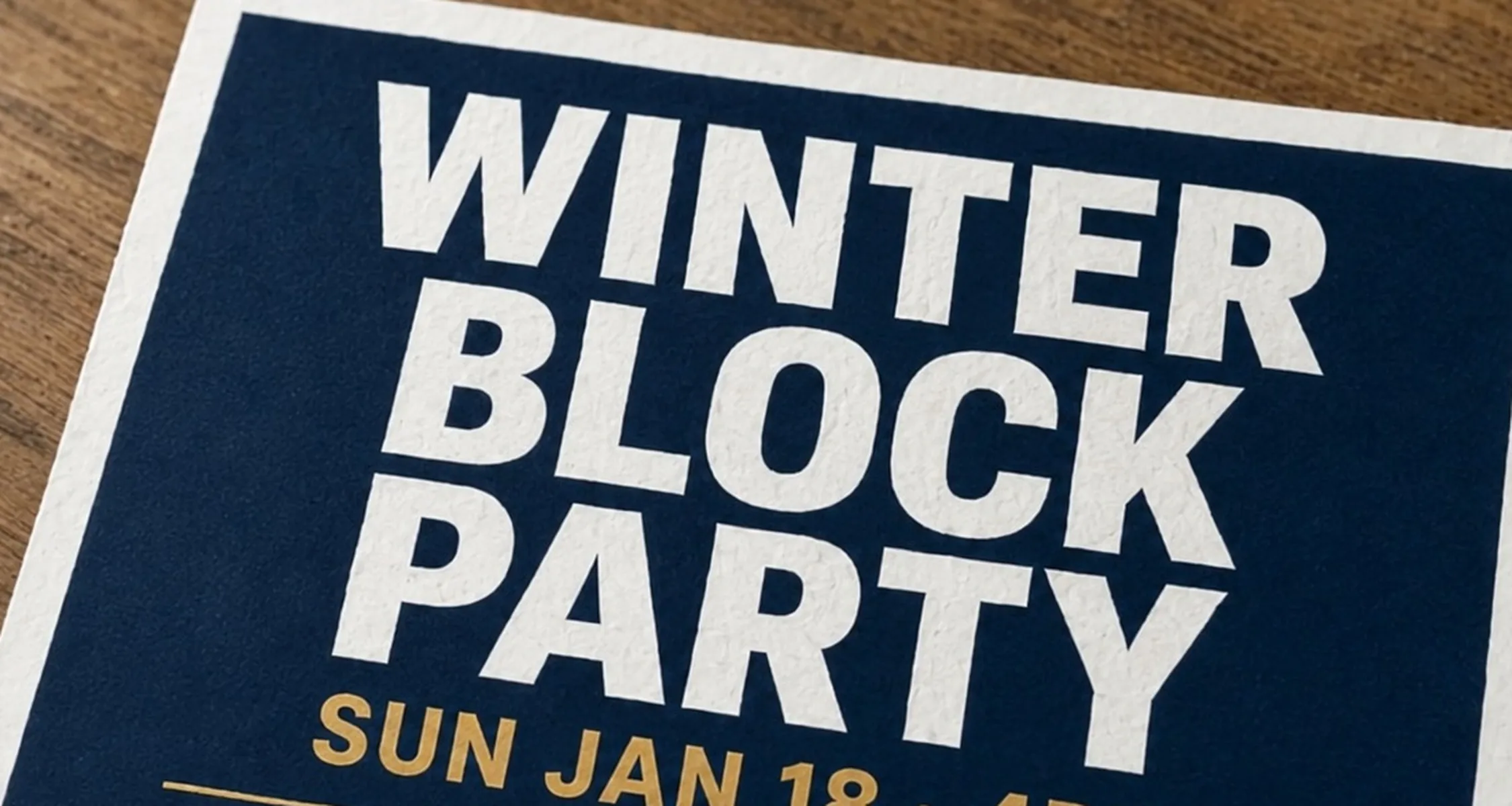
How to edit text in a JPEG (3 steps)
Editing text in a JPEG means rewriting words that are already part of the picture—on a poster, ad, product shot or downloaded graphic, which are often saved as a JPEG or JPG. Those words are pixels, not a live text layer. Retypit edits that flat file in the browser.
Upload Your Image.
Open Retypit and drop in a JPEG, JPG, PNG or WebP up to 20MB. Retypit analyzes the image and numbers every line of text it finds.
Click the Text and Retype It.
Select the numbered line (or several lines), type the new wording, and click Run.
Download the Result.
Open your history and download. The new words keep the original font, color and style. The download keeps the original resolution, with no watermark.
Only the lines you select change. Faces, backgrounds, objects and layout stay where they were.
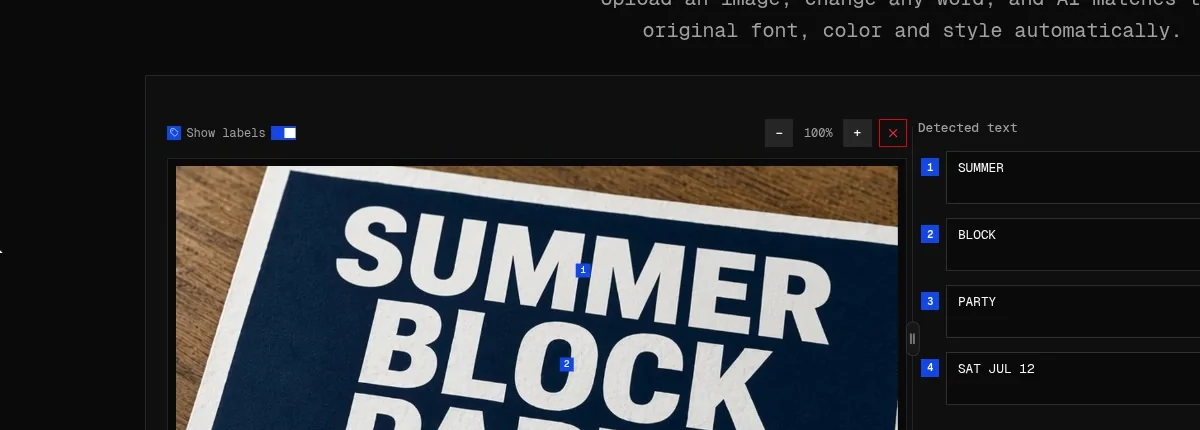
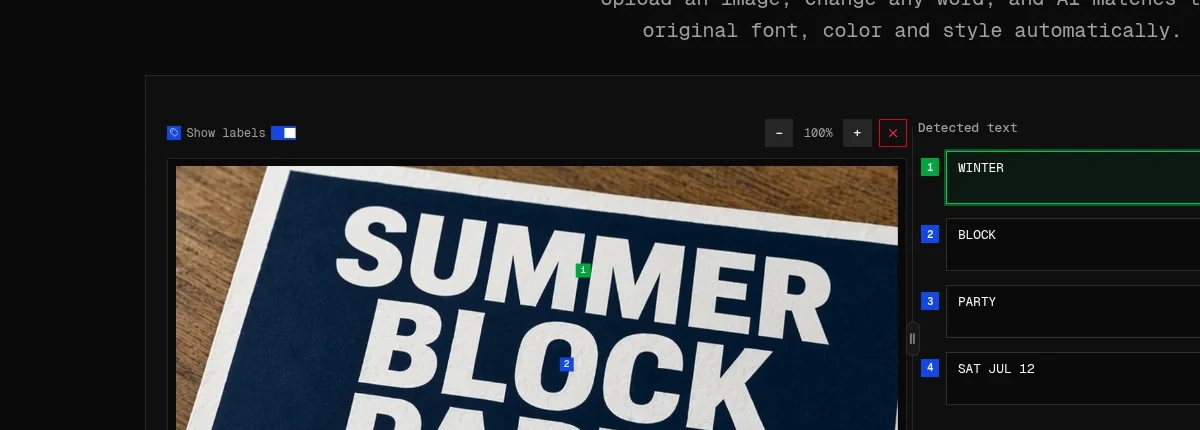
Change existing text—don’t paste a new overlay
Most “add text” tools drop a fresh font on top of the picture. That looks like a sticker: wrong weight, flat color, missing shadow and texture.
When you edit JPEG text with Retypit, you are not layering type. You rewrite the line that is already there. On Run, Retypit uses the original lettering as the reference and rebuilds your new words to match—font, color, texture, shadow and perspective included. You do not hunt for a font file or open a layered PSD.
Preview, Photos or Word cannot edit text in a JPEG for the same reason: a JPEG is a flattened bitmap. The typography is not a live text layer. Retypit edits those pixels in place.
That is why it works as a JPEG text editor on files such as:
- Event posters and flyers, photographed or exported as JPEG (headline, date, venue)
- Ads and marketing graphics downloaded from the web
- Product photos, packaging and label shots
- Pictures compressed in chat or email
- Finished flat graphics that only need a typo or outdated line fixed
For the general walkthrough (any image, not only JPEG), see how to change text in an image . For matching style in more depth, see how to edit text in an image and keep the same font . For screenshots, see how to edit text in a screenshot .
Common ways people edit text in a JPEG
Update a date, name or price
You already have the finished graphic. Only one fact changed. Upload the JPEG, select that line, type the new date, name or price, and run. Typical swaps: event date on a flyer, store name on a sign photo, menu prices on a photographed menu.
Fix a typo or garbled letters
Misspellings in a button label, headline or AI-generated sign are common. Select the bad line, type the correct spelling, and run. You do not rebuild the whole image.
Change a CTA or caption
Swap Sign up for Join free, or refresh a caption, while the rest of the layout stays put.
Refresh a poster without a redesign
Change the headline from SUMMER to WINTER, or LIVE to JAZZ, and keep the same display lettering. If the new phrase is much longer, shorten it or split it across two lines so spacing stays natural. For a full example of a seasonal poster update, see how to refresh a poster or flyer .
Tips for a natural-looking edit
- Keep a similar length. Close character counts fit the original space better.
- Match the case. If the line is ALL CAPS, type the replacement in caps too.
- Change one busy line at a time. On dense designs, run headline and date separately so you can check each result.
- Use the sharpest JPEG you have. Heavy compression softens small letters and makes the style harder to match. If you still have a less-compressed original, use that file.
- Re-run if needed. Results can vary; try the same edit again before changing your wording.
- Batch when you can. You can process text in several images in parallel: start one run, then upload the next while it works.
Edit text vs remove text
- Edit / change / replace: you want new words in the same place and look. Use the homepage editor: upload → retype → Run → download.
- Remove only: you want the words gone and the background filled. Use Text Remover .
Need letter SVGs in that font style for design tools? Use Image to Font —upload a style image, type your text, get letter SVGs (not a font ID or .ttf).
JPEG, JPG, PNG and WebP
JPEG and JPG are the same format with different file extensions. Finished images are flat: the text is pixels, not a live text layer. Retypit edits the flat file directly.
- JPEG / JPG — the usual format for photos, exports and graphics saved from the web; prefer a less-compressed original when letters are small.
- PNG — better for screenshots, logos and sharp UI text; this page does not need a separate PNG tutorial.
- WebP — images saved from the web.
Limit: 20MB per image. Works in desktop and mobile browsers (Safari or Chrome). No app to install.
If Photoshop’s Type tool can’t edit the text
If you open a JPEG in Photoshop and the Type tool does nothing to the letters already in the picture, the file is usually flat. Saving a poster, photo, or export as a JPG, PNG or WebP turns the type into pixels. Those pixels are not a Type layer, so the Type tool cannot click into them and rewrite them. Rasterizing a type layer has the same effect: once the letters are pixels, Photoshop cannot turn them back into editable type.
You can tell the difference in the Layers panel:
- A Type layer typically shows a T icon, and the letters are selectable with the Type tool — if the font is still available on your computer.
- A flattened JPEG often appears as a locked Background, or as a regular pixel layer. Clicking with the Type tool only starts a new text layer on top of the picture. It does not edit the words that are already printed into the image.
- A missing-font warning on a Type layer is a different problem. The layer may still be type, but the font file is not on that machine. If you have the design file and the font, fix it in Photoshop. If all you have is a flattened export, you are back to a flat image.
If you still have the original design file — a PSD, Illustrator, InDesign, or Canva file — and the type is still selectable, edit that source and export a new image. That is the better path when you can open the live type.
When the finished JPEG is what you have, you do not need a PSD to edit text in an image. Upload the flat JPG, PNG or WebP, click the numbered line, retype it, and click Run. Retypit works on the picture you upload; it does not open a Photoshop file, and it does not identify a font by name. Check the preview before you download.
FAQ
How do I edit text in a JPEG?
Upload the image to Retypit, select the numbered line you want to change, retype it, click Run, and download. The new words keep the same font, color and style.
Are JPEG and JPG different?
No. JPEG and JPG are the same image format. Whether the file ends in .jpeg or .jpg, you edit the text the same way.
Why can’t Preview or Word edit text in a JPEG?
Because the words are already pixels in the picture, not a live text layer. Retypit edits that flat file directly. You do not need a PSD or Photoshop.
Why can’t the Type tool edit text in this JPEG in Photoshop?
Because a JPEG is a flattened image: the letters are pixels, not a Type layer. The Type tool can add new text on top, but it cannot rewrite type that has already been flattened or rasterized. If you still have a source file with selectable type, edit that file. If you only have the JPEG, upload it to Retypit, retype the line, and click Run.
Can I edit JPEG text and keep the same font?
Yes. On Run, Retypit references the original lettering and rebuilds your new words to match. You do not need the font name or a layered file.
Is this an online JPEG text editor?
Yes. Retypit runs in the browser: upload a JPEG or JPG, edit the line, and download. No desktop install and no Photoshop. It also opens JPG, PNG and WebP.
Can I change several lines at once?
Yes. Select multiple numbered lines, retype each one, and click Run once.
What file types are supported?
JPG, PNG and WebP, up to 20MB. Downloads keep the original resolution and have no watermark.
Edit text in a JPEG in a few clicks
Upload an imageJPG, PNG or WebP · Max 20MB