01Upload Your Image
Drop a JPG, PNG, or WebP. You can start clicking as soon as it loads.

Simpler than other AI image editors. Give it a try.
Ask ChatGPT how to use this tool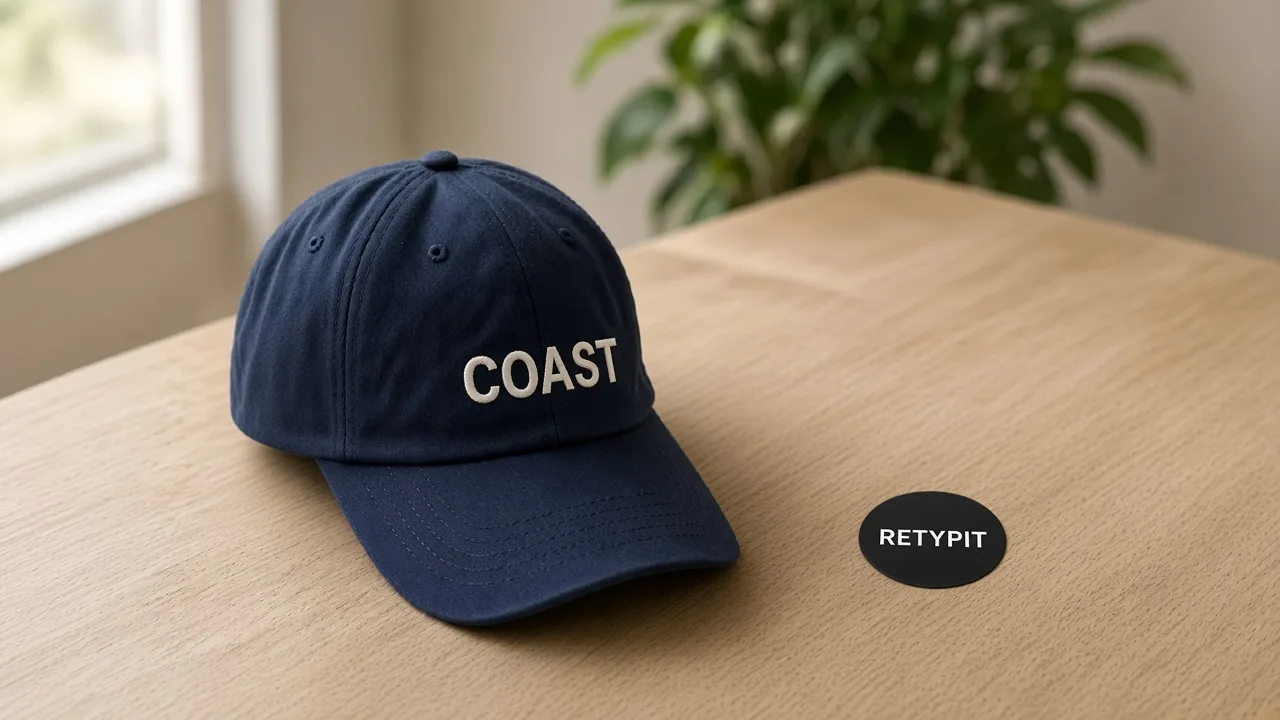
Then click the part you want to change and add a short note.
Or click to browse · PNG, JPG, WebP up to 20MB
Upload a photo, point at what should change, and write a short note. You do not need a long prompt.
Drop a JPG, PNG, or WebP. You can start clicking as soon as it loads.
Drop numbered points on what you want to change. A short note is enough. No long prompt.
Press Run. Retypit edits from your points and returns the full image. Slide before and after, then download.
No long prompts. Mark the spots you want to change, add a short note, and get your edited image—less typing, quicker edits.
Drop numbered points on any image, write a few words on each, and run—no long prompt for the whole image.
This AI image editor changes only what you mark, so edits stay short and easy to redo.
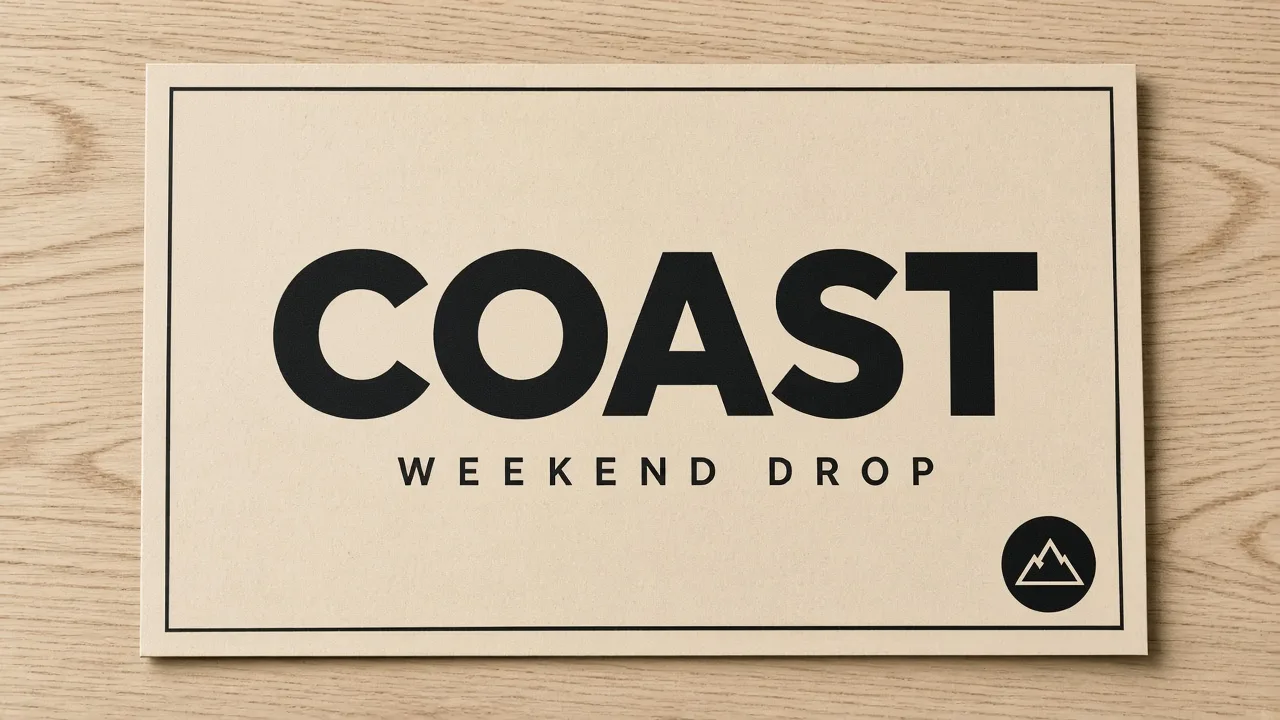
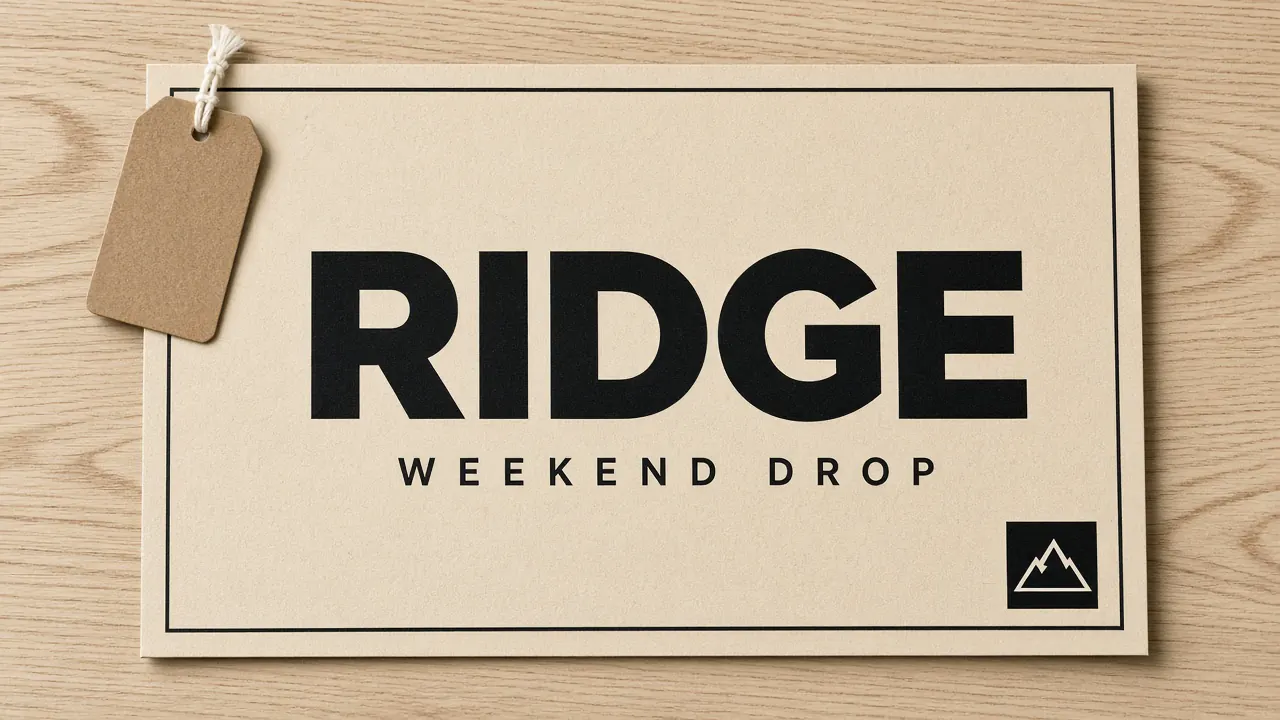
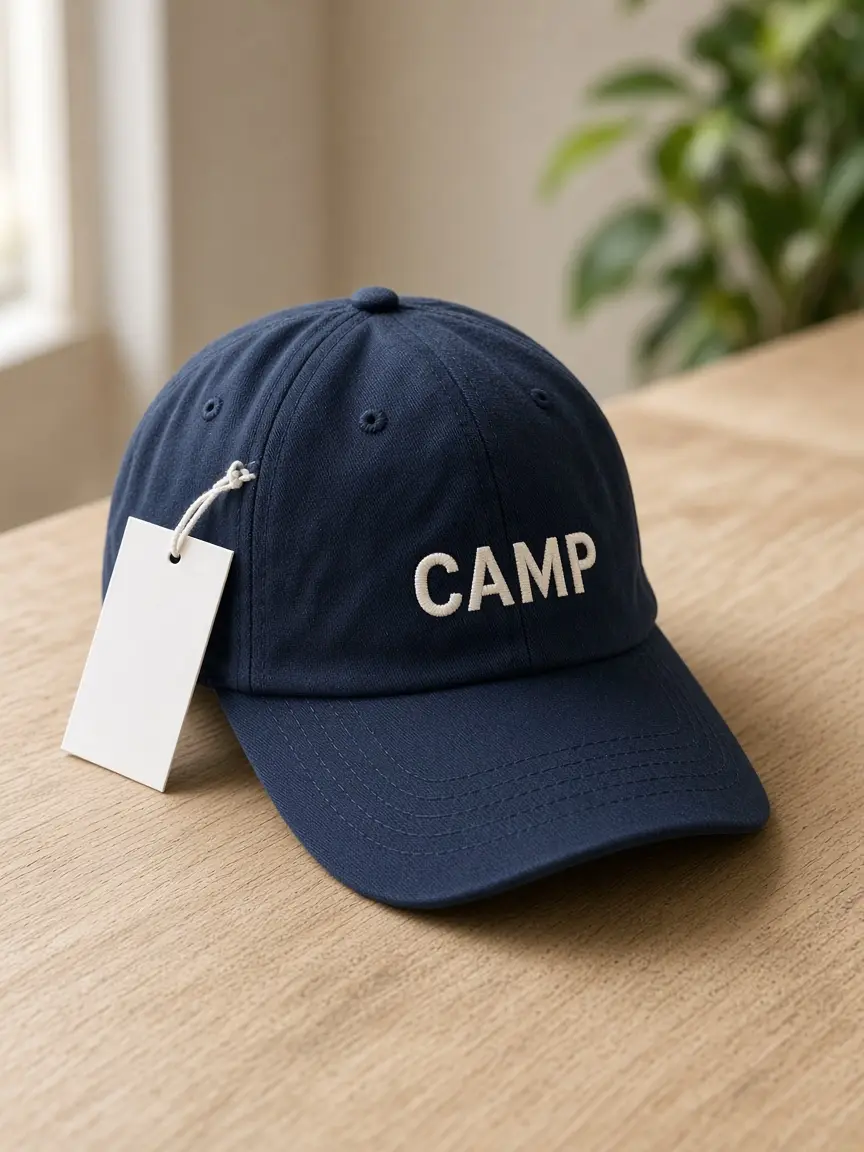
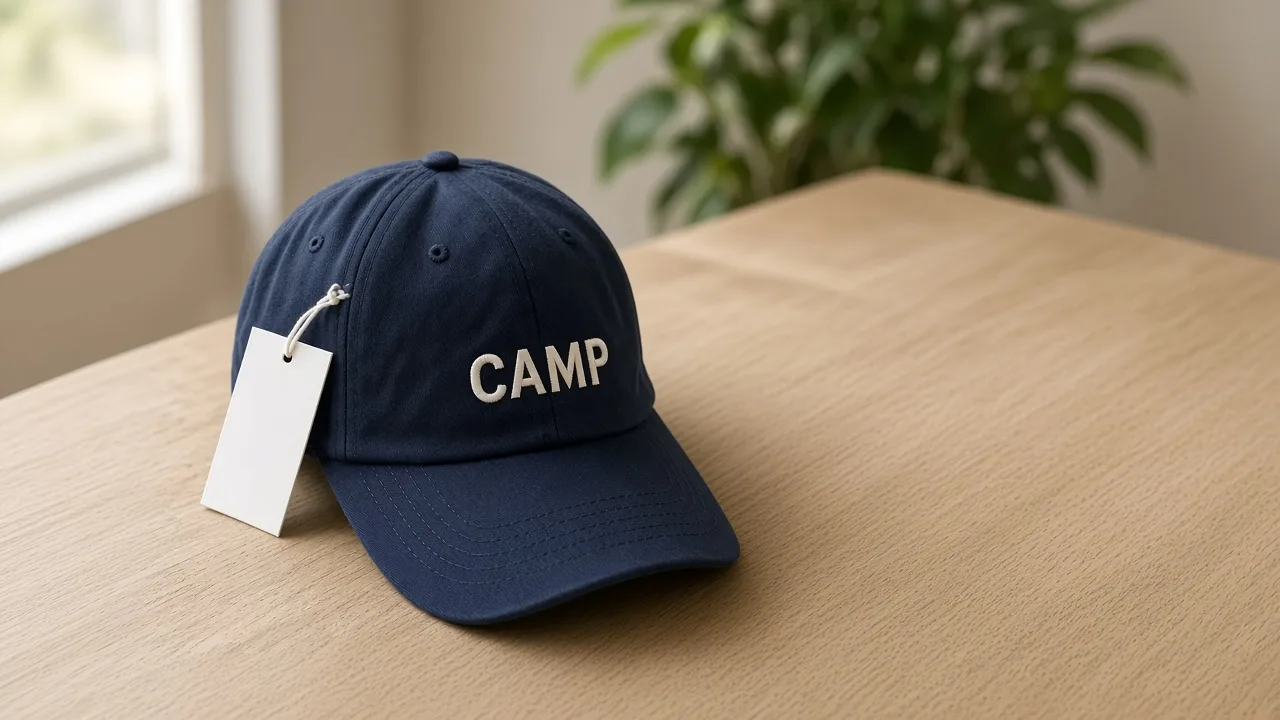
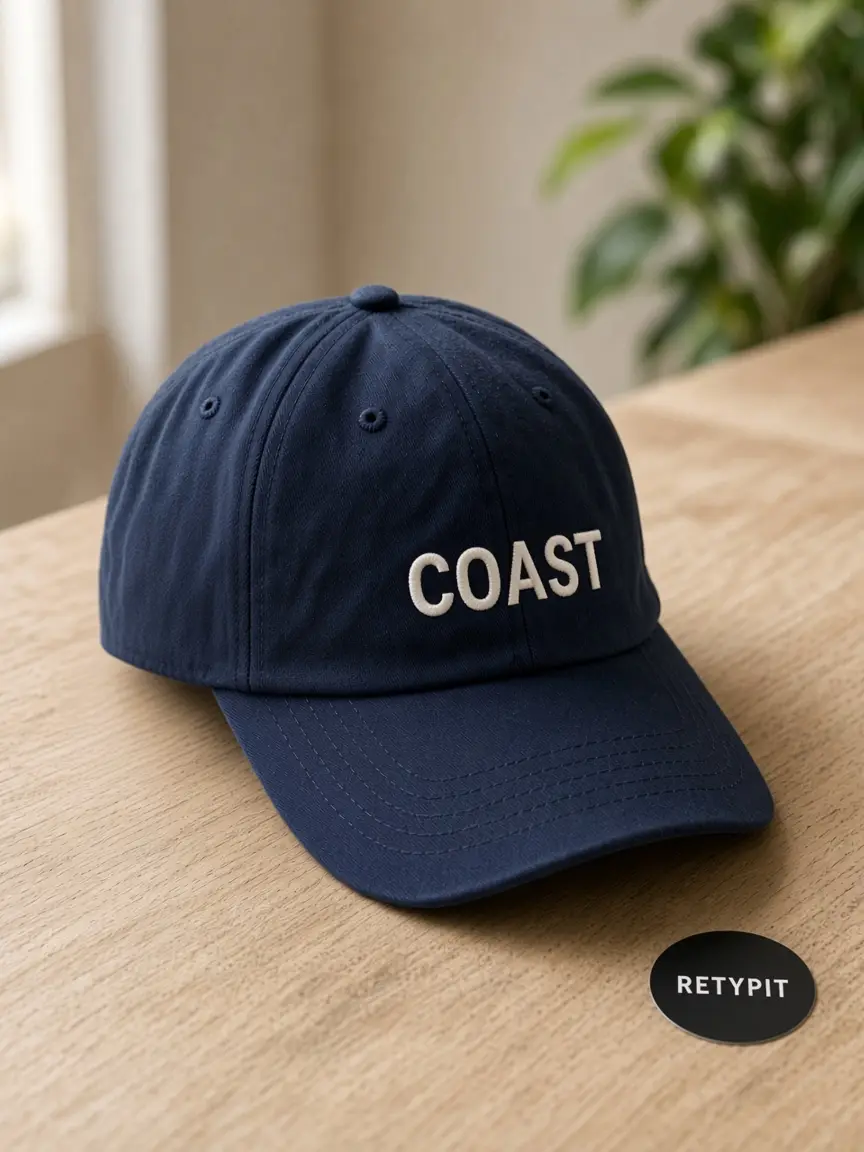
Edit: Remove tag; Change to COAST; Add circular black mountain sticker
For: Any image when you want short notes instead of a long prompt
When many similar objects fill the picture, you click the exact one. A short note says what to change.
On pencils, bottles, or icons that look alike, this AI image editor changes that object—not every look-alike nearby.
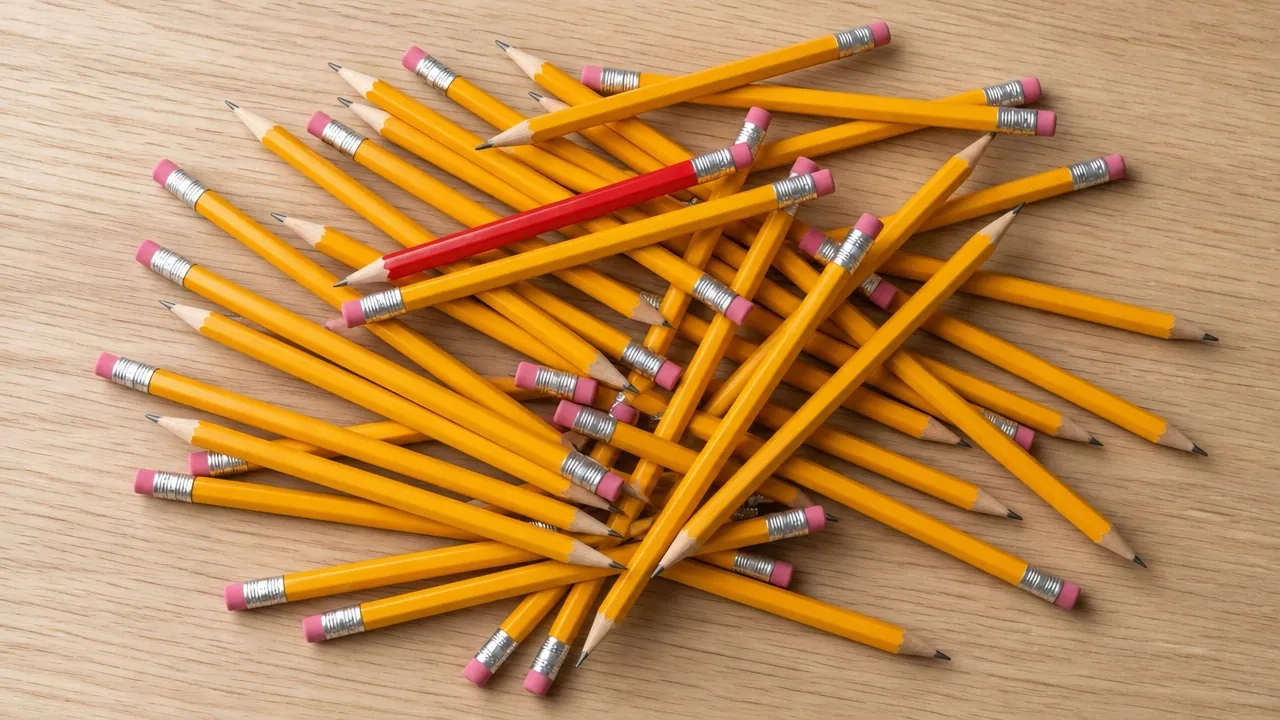
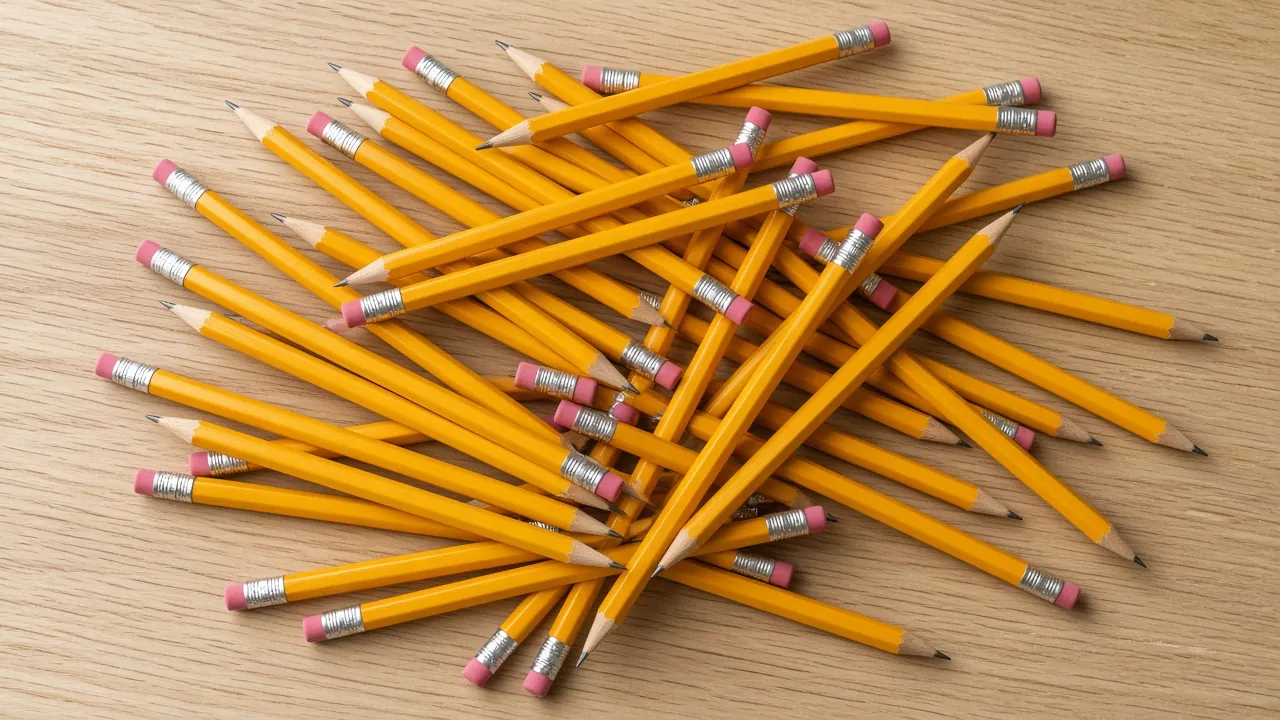
Edit: Change this pencil to red
For: Any image with many similar objects, when you want to mark one
Edits stay on the points you placed. The rest of the image stays as it was.
Local edits keep backgrounds and nearby details intact—cleaner than a broad AI prompt for the whole image.
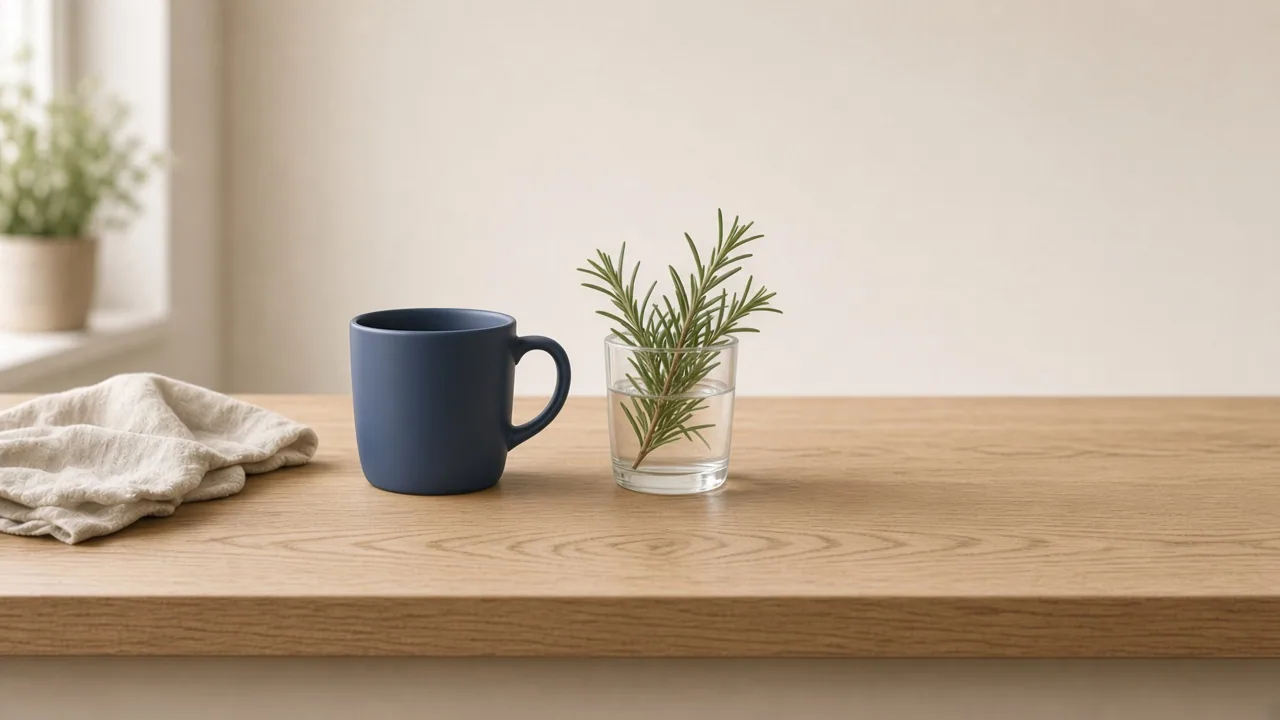
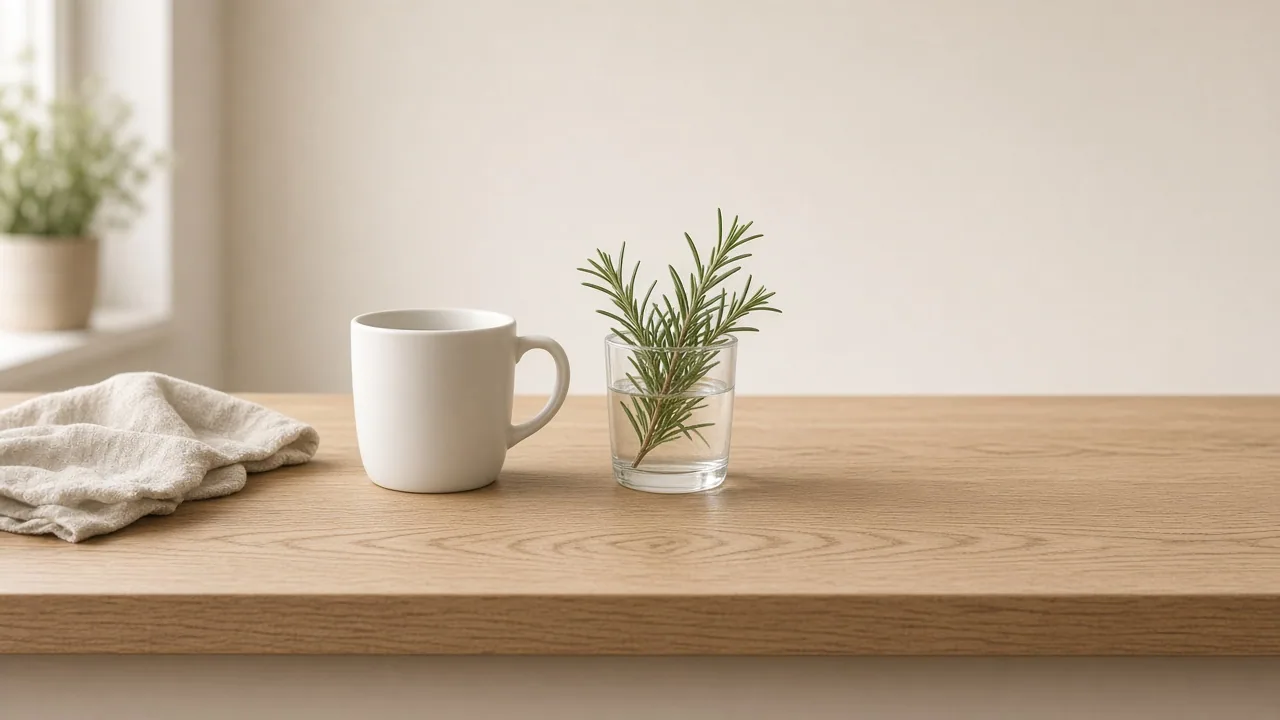
Edit: Change this mug to navy
For: Any image when the rest should stay as it was
Drop multiple points, add a short note on each, and run once.
Color, remove, or replace in one pass. One run keeps AI image editing fast when several spots need updates.
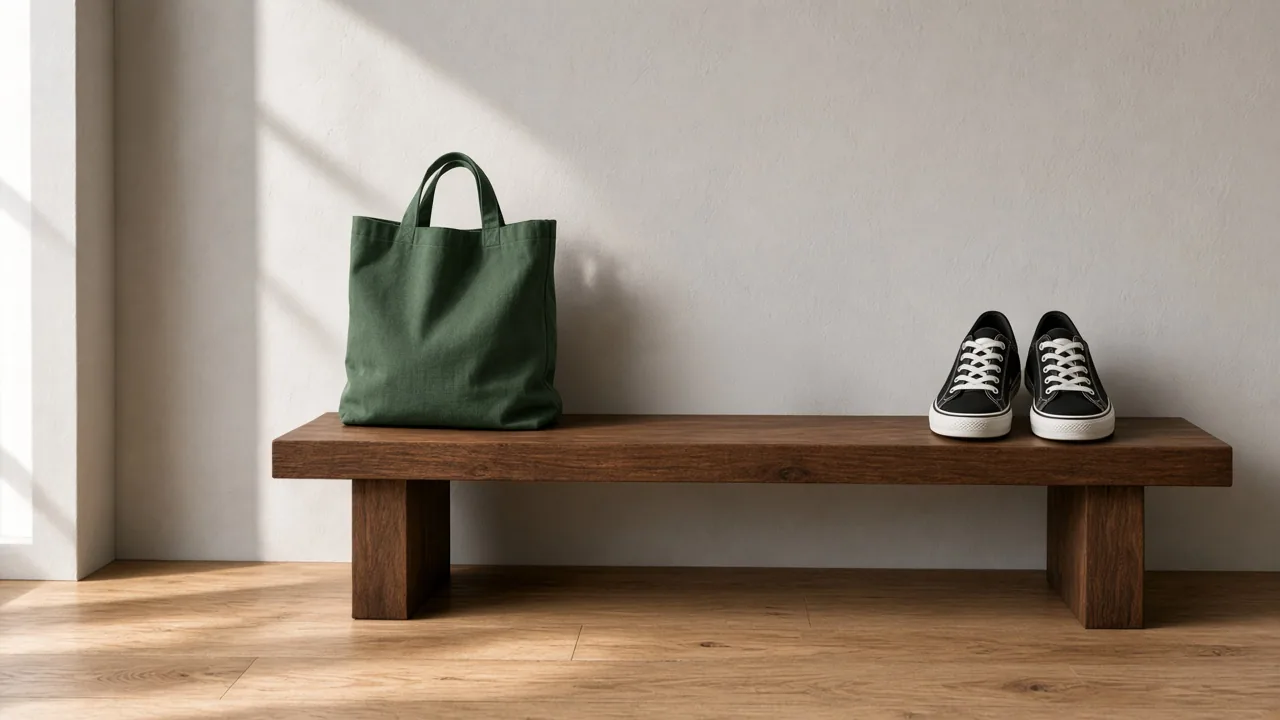
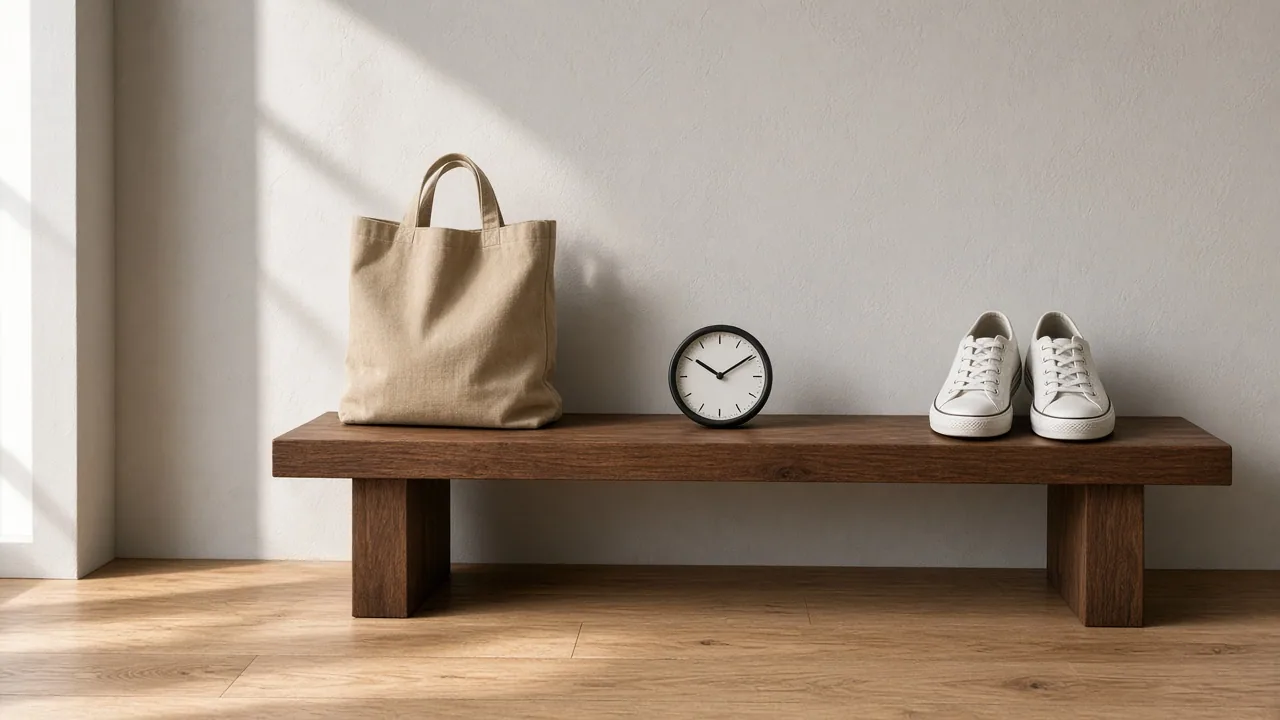
Edit: Change tote to green; Remove clock; Change shoes to black
For: Any image when several spots should change in one run
Mark the spots, add a short note on each, and run—on any image.
JPG, PNG, or WebP · Max 20MB
An AI image editor uses AI to change parts of a photo or picture in the browser. On Retypit, you upload an image, mark the spots you want to change, add a short note on each mark, and run. You do not need a long prompt for the whole scene.
Upload a JPG, PNG, or WebP—posters, product shots, screenshots, or any other image. Mark the spots you want to change, add a short note on each mark, then press Run. Retypit returns the full image so you can compare before and after and download. Everything runs in the browser—no app install.
Yes. Drop numbered points on what should change and keep each note short. Retypit uses those marks instead of a full-scene prompt, so photo editing stays focused and easier to redo.
Mark only the spots you want to change. Edits stay on the points you placed; the rest of the photo stays as it was—backgrounds, lighting, and nearby details included—cleaner than rewriting the whole image with a broad prompt.
Click the exact object you mean. When pencils, bottles, or icons look alike, the point tells this AI image editor which one to change—not every look-alike nearby.
Yes. Drop multiple points, add a short note on each, and run once. You can change color, remove, or replace in one pass without starting over for each spot.
JPG, PNG, and WebP. Check the upload area on this page for the current file-size limit.