01Upload Your Image and Analyze the Text
Drop a JPG, PNG or WebP. Retypit detects every line of text automatically.
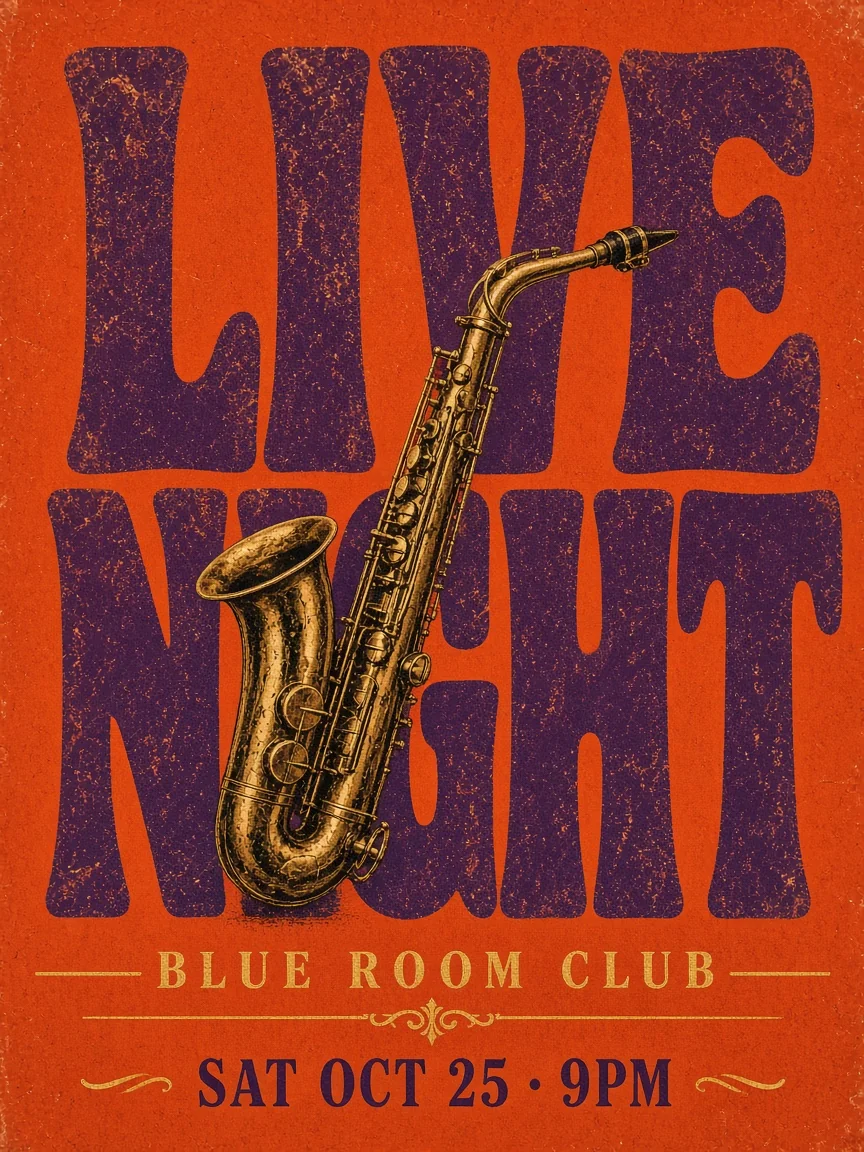

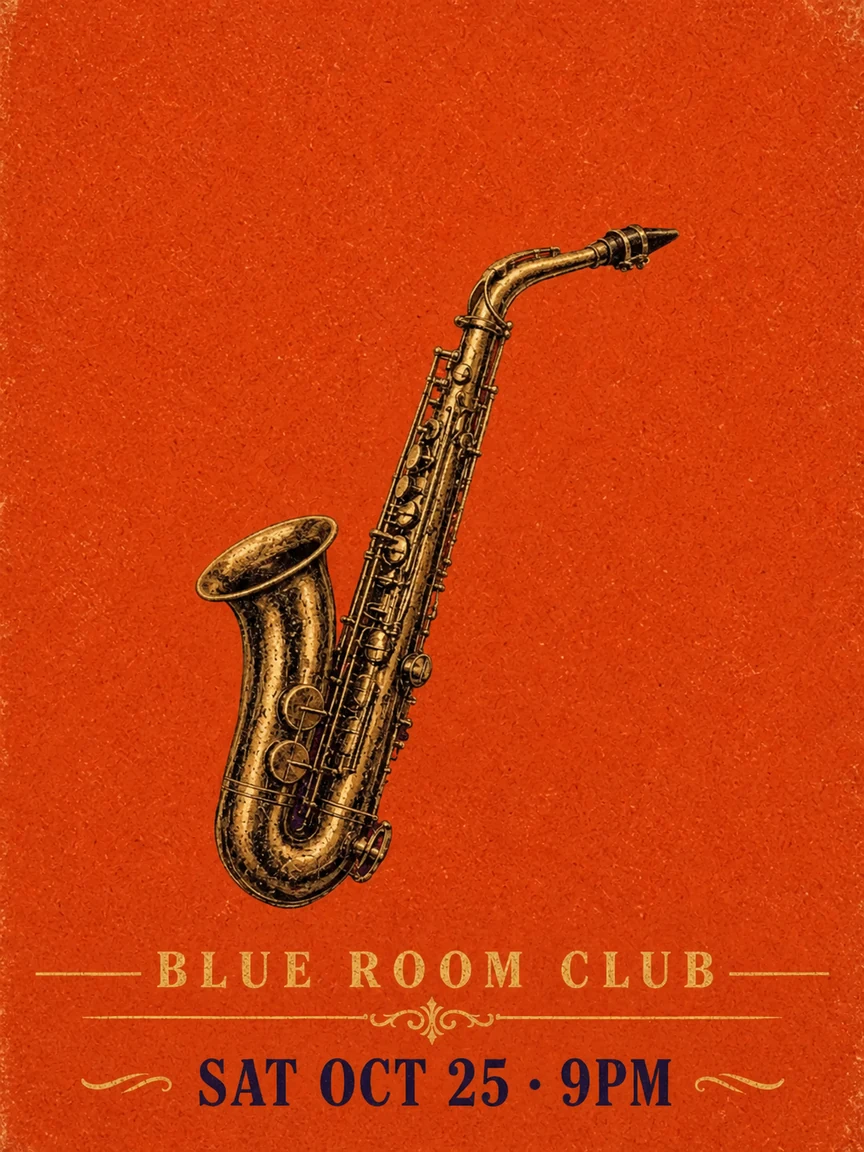
AI detects every line of text. Select the ones you want gone, then click Run.
Or click to browse · PNG, JPG, WebP up to 20MB
Upload an image, select the lines you want gone, and download a clean result.
Drop a JPG, PNG or WebP. Retypit detects every line of text automatically.
Click numbered tags on lines like “LIVE” and “NIGHT”. Selected rows turn red with strikethrough.
Retypit removes the selected text and fills the background so the rest of the poster stays intact.
Ready to remove text from your own image?
After you remove text from an image, the critical step is completing the background. Retypit redraws the whole frame to erase the selected words and fill what was behind them, while the rest of the picture stays intact.
Screenshots, soft gradients, photo textures, and decorative type are all supported—delete the lines you do not need, and the background continues cleanly. The same flow works when you need to erase text from a photo or clear short overlay captions.
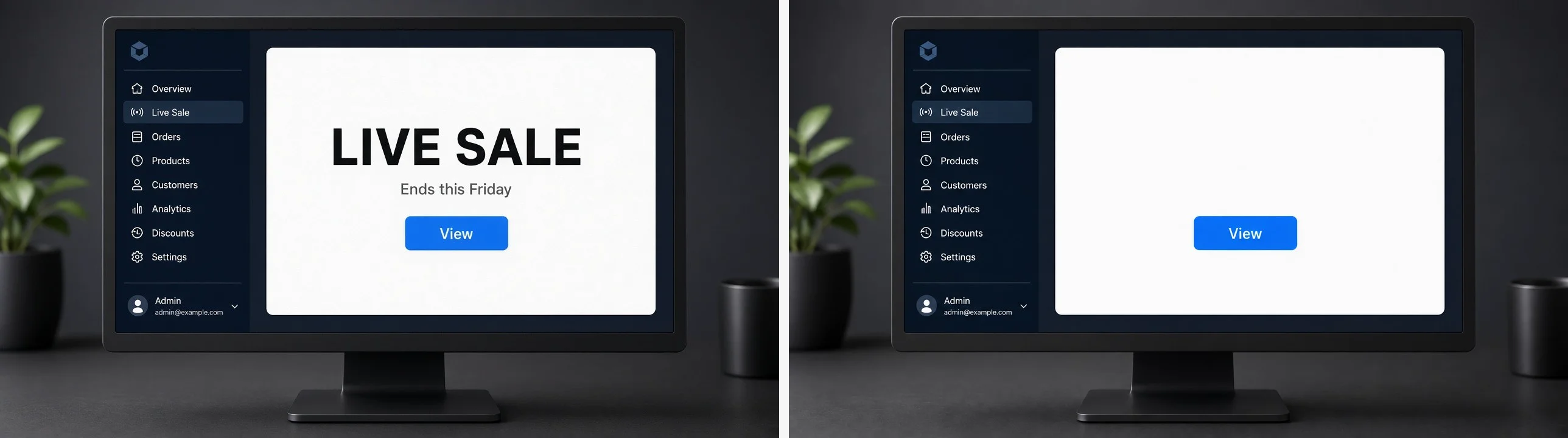
Solid fills and sharp edges. Clear UI copy and the panel stays continuous.
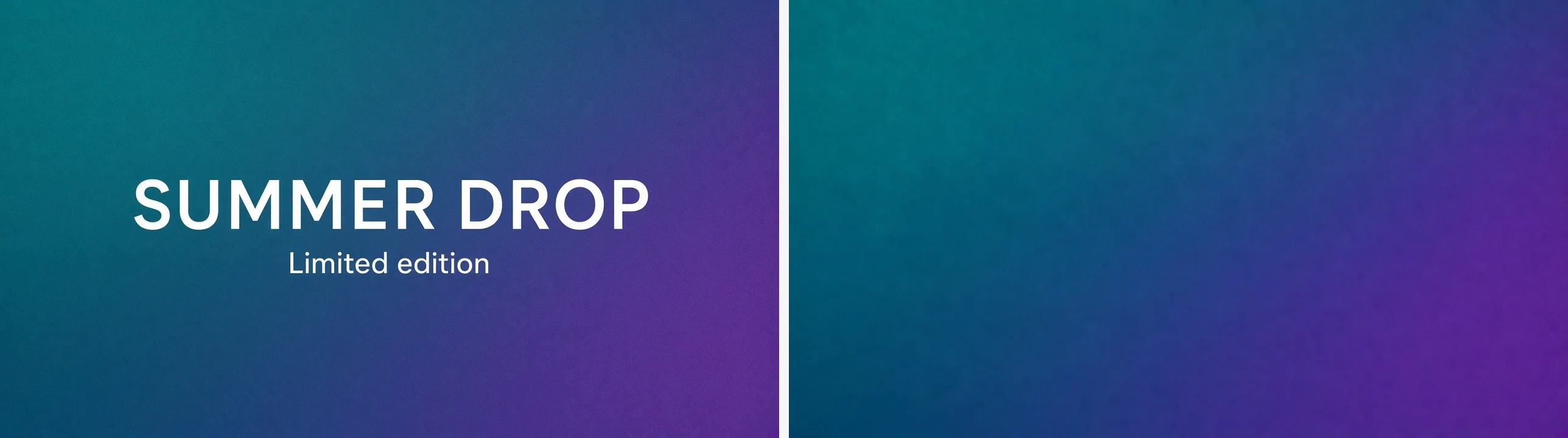
Color ramps continue smoothly after a headline is removed.
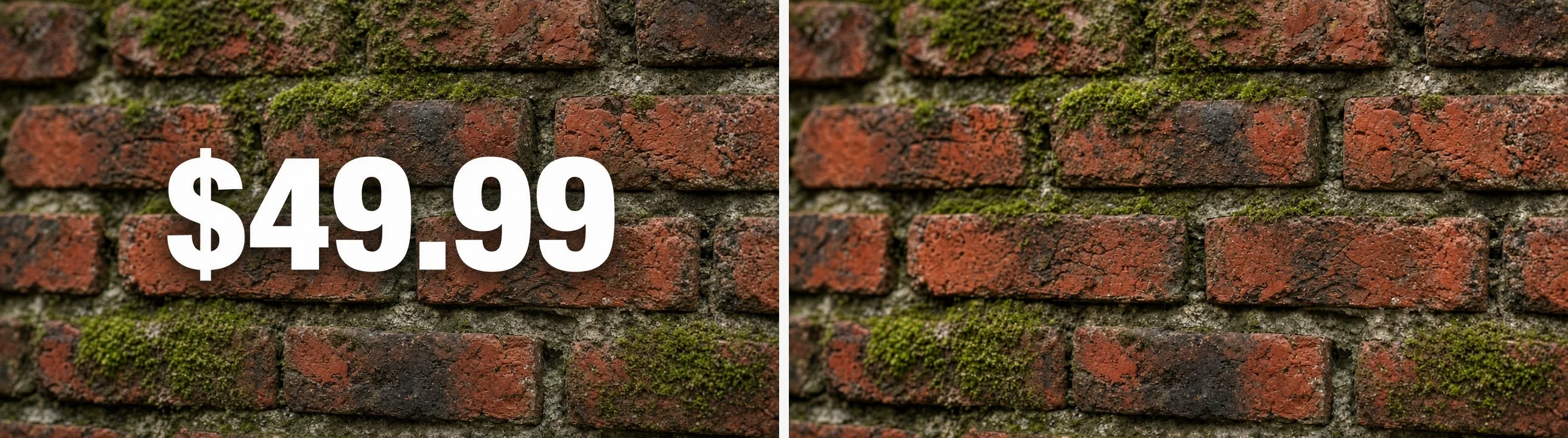
Prices and labels on brick, fabric, or soft color areas are completed cleanly.
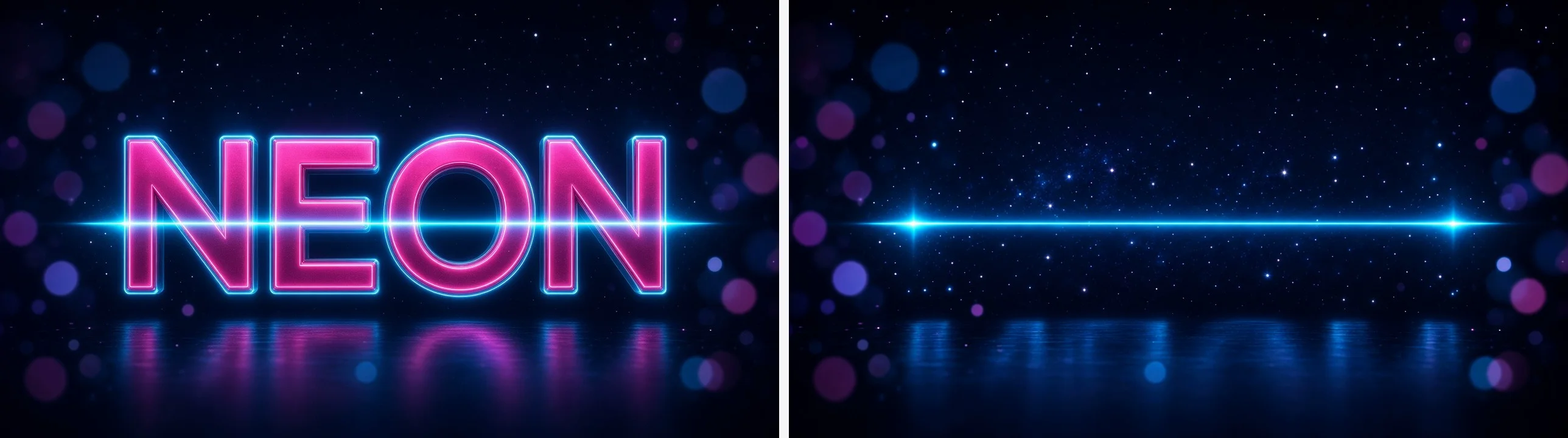
Effect headlines clear while the art behind them remains.
Posters, screenshots, menus, labels, AI art, and memes—erase the words and leave the picture.
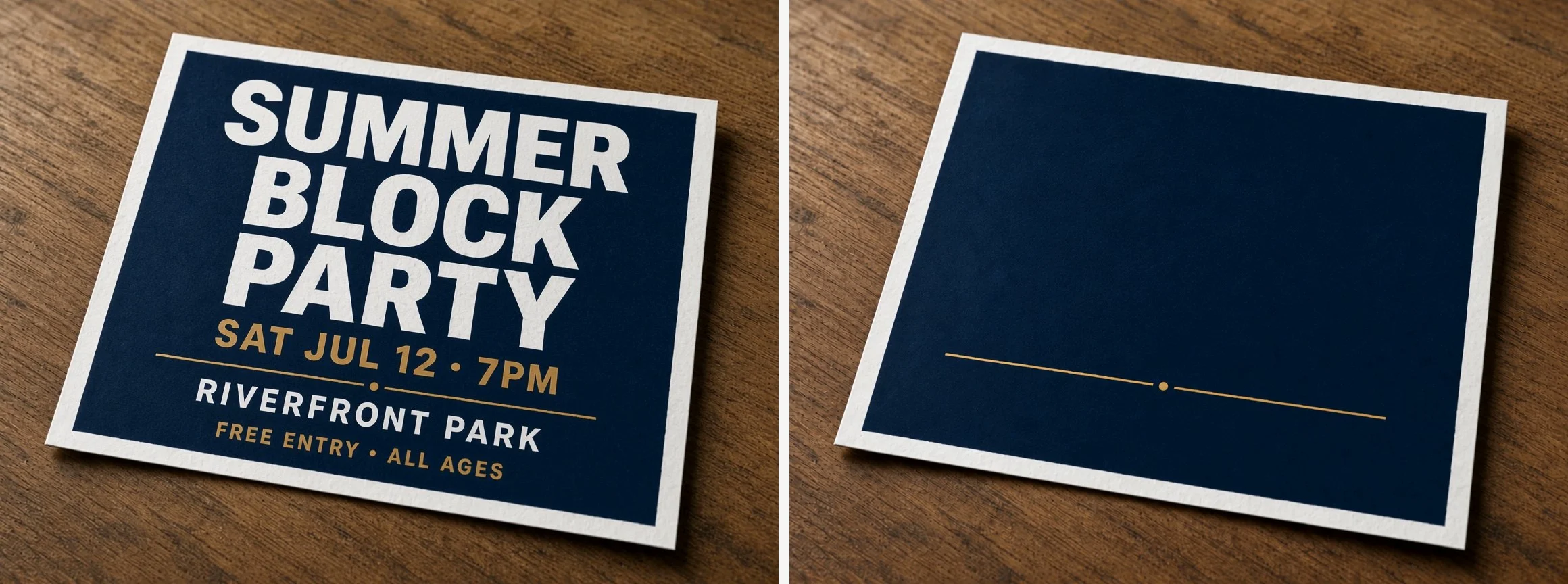
Clear an expired event name, date, or venue from a poster while keeping the layout for a clean export.
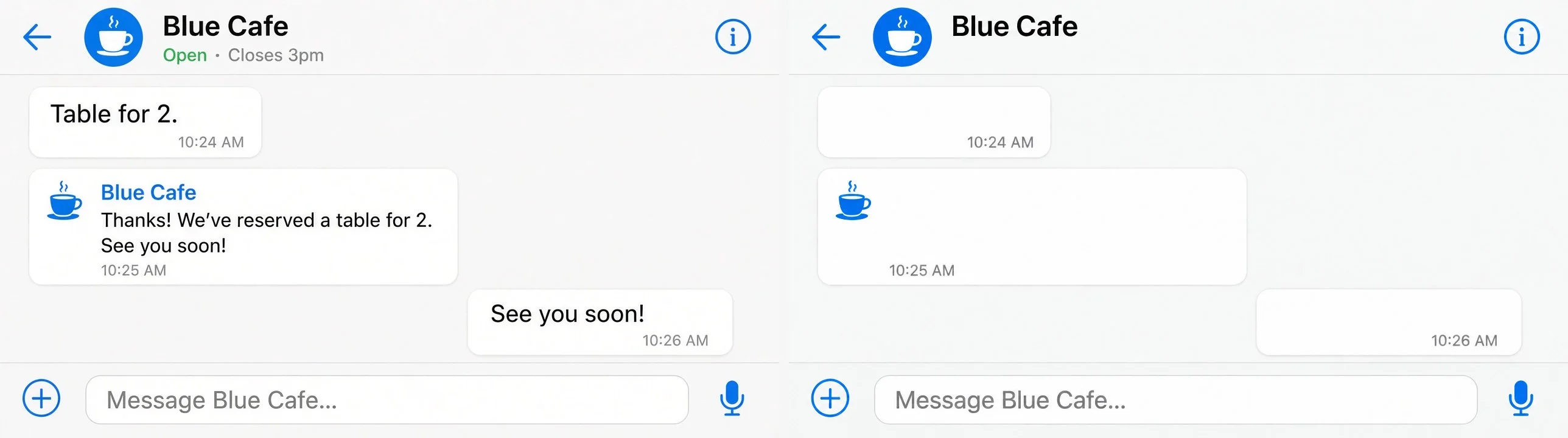
Clear a temporary banner, debug string, or outdated button label from a screenshot without rebuilding the UI.
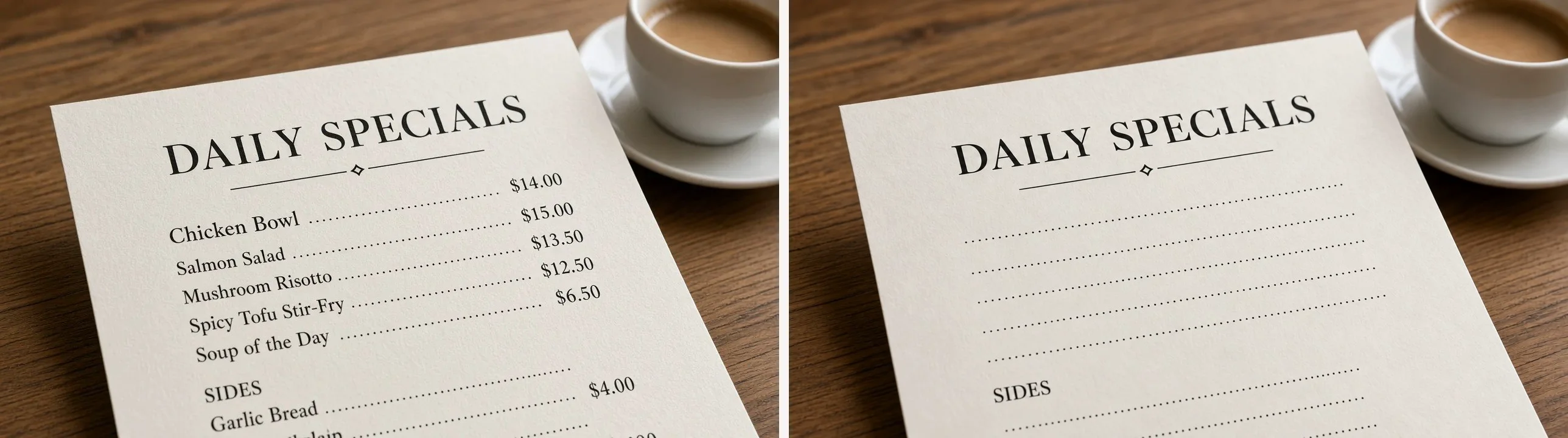
Delete prices from a menu photo before updating quotes or exporting a blank plate.
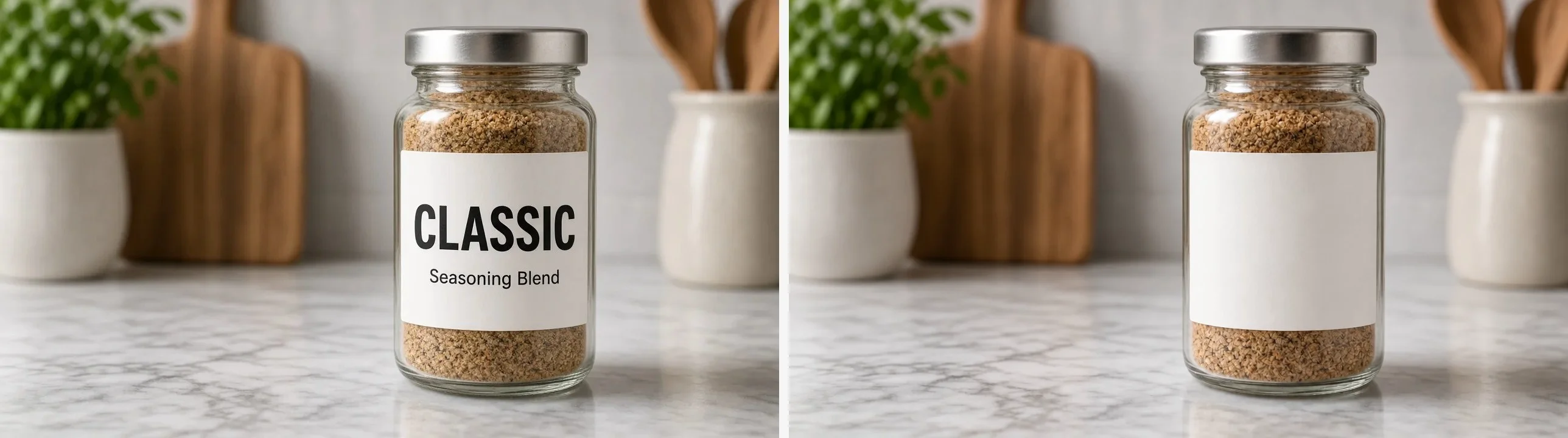
Erase outdated label copy on jars and packaging shots while the product stays in frame.
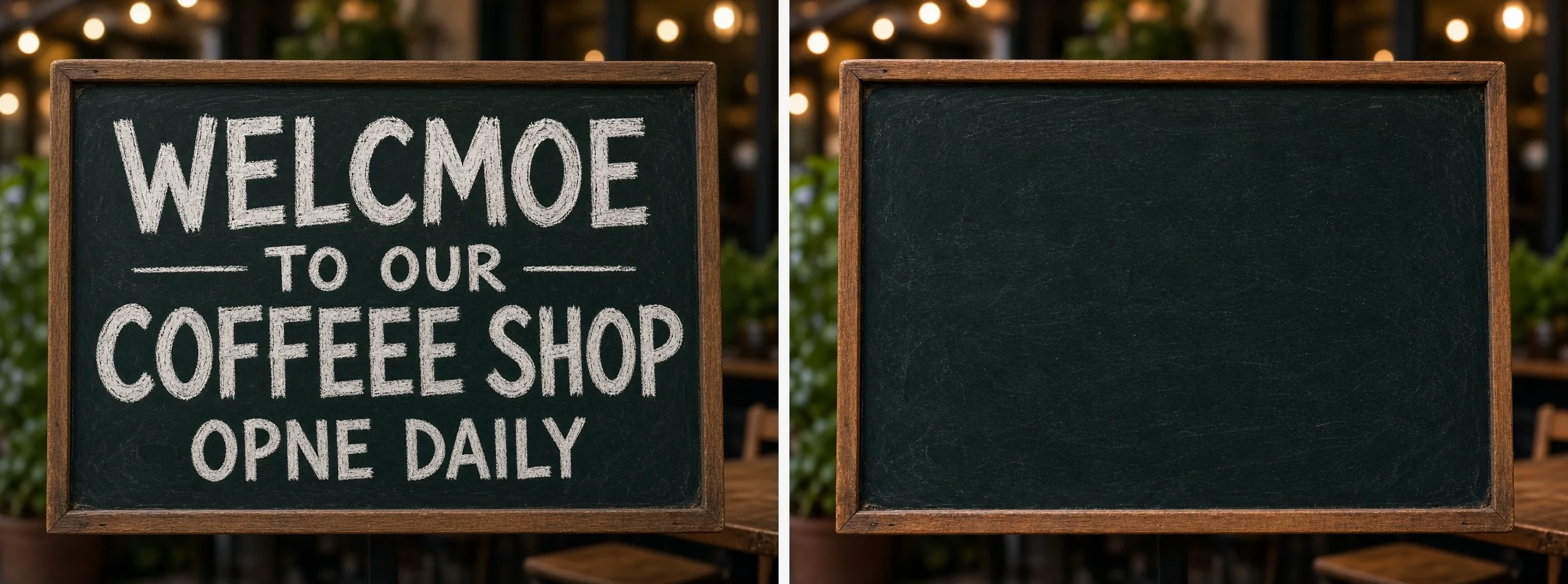
Erase unwanted AI-generated words instead of regenerating the entire scene—handy for one-off mistakes.

Clear an old caption or overlay on memes and social graphics so the next post exports cleanly.
Yes. Use Extract Text from Image to pull copyable plain text from a photo or screenshot.
Yes. Upload a photo or picture, select the words or letters to remove, and Retypit erases them while completing the background—the same text remover flow as for flat graphics.
Yes. Screenshots, flat graphics, and photos are supported—the table above describes how each background type is handled.
Yes. Retypit redraws the whole image to complete the background across screenshots, gradients, photo textures, and decorative type. Confirm the result in preview before download.
No. A finished JPEG or PNG is sufficient. No installation and no layered source file are required.
JPG, PNG, and WebP, up to 20MB. Downloads retain the original resolution.