
AI Image Editor
Simpler than other AI image editors. Give it a try.
No long prompts. Mark the spots you want to change, add a short note, and press Run.
Then click the part you want to change and add a short note.
Or click to browse · PNG, JPG, WebP up to 20MB
Edit Any Part in Three Steps
Upload a photo, point at what should change, and write a short note. You do not need a long prompt.
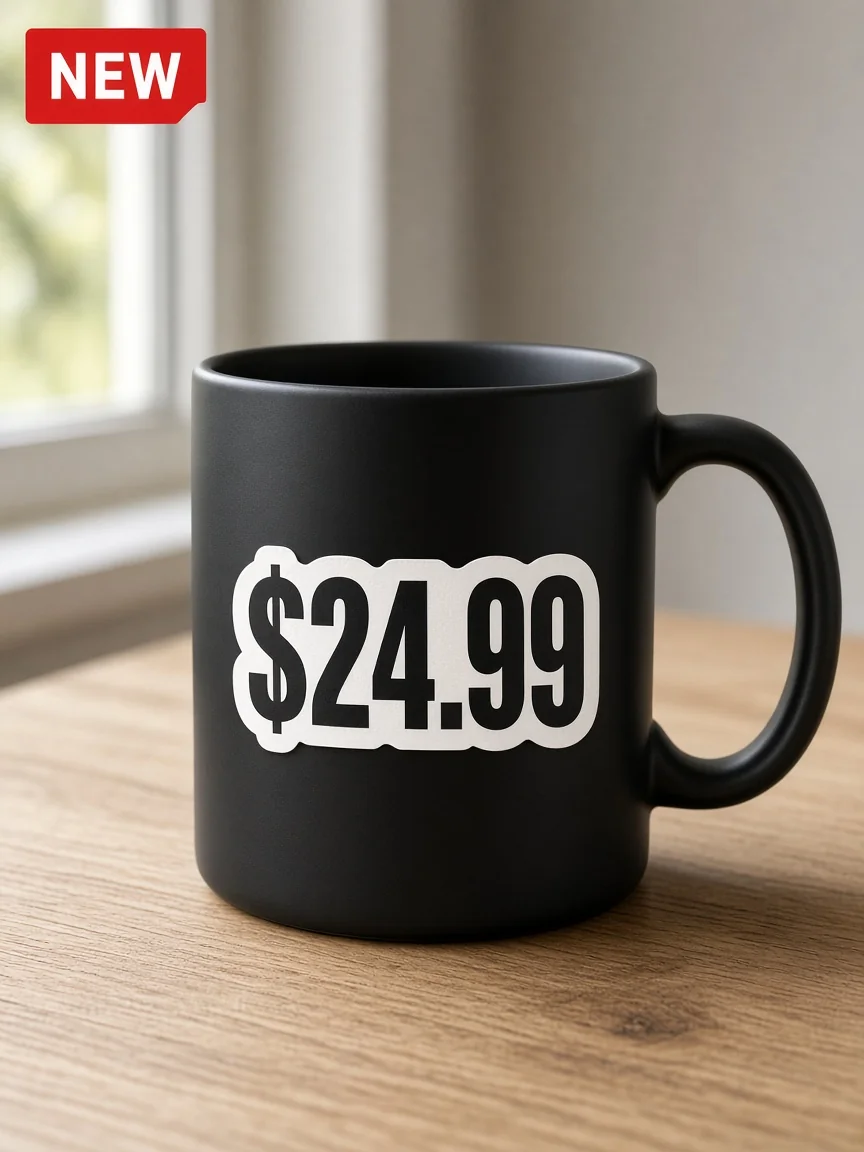
01 Upload Your Image
Drop a JPG, PNG, or WebP. You can start clicking as soon as it loads — there is no text scan to wait for.
- 移除
- 改成19.99
- 加SALE
02 Click Points and Write Short Notes
Drop up to 16 numbered points on the person or object you want to change. A short note is enough. No long prompt.
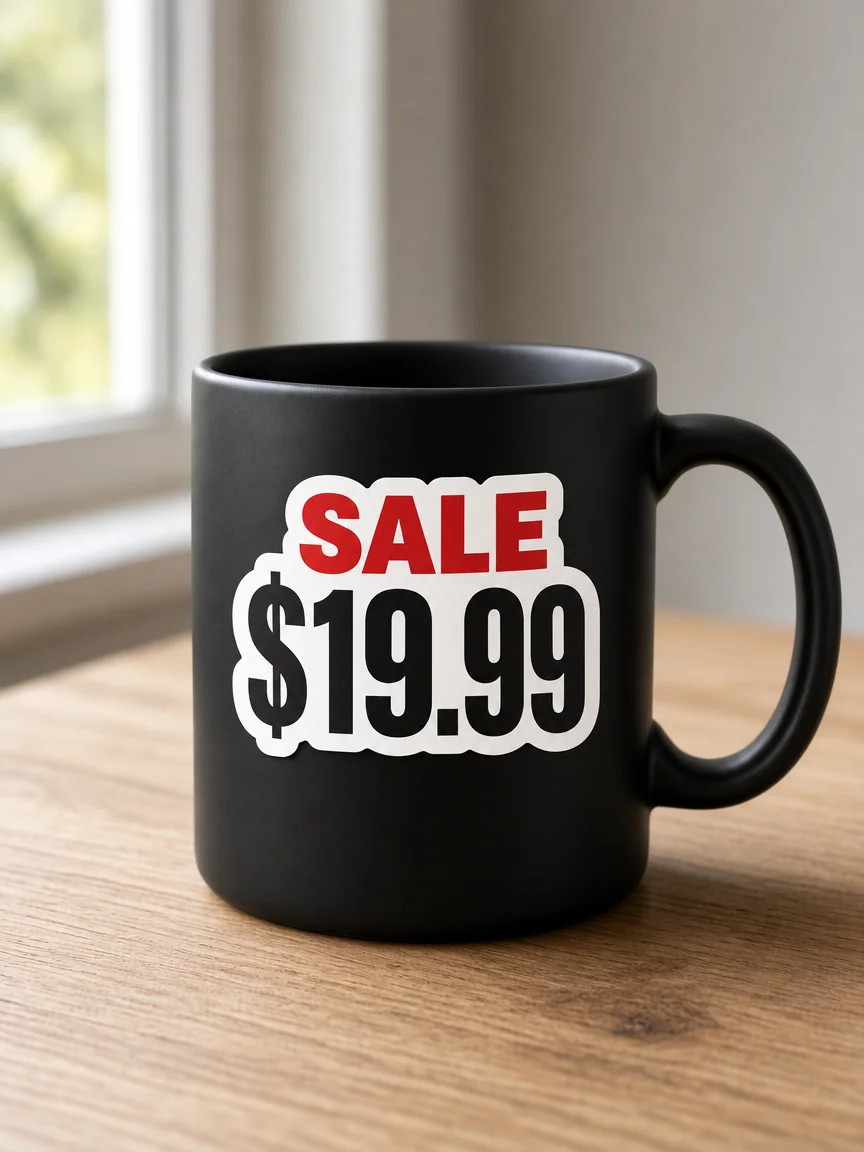
03 Run and Compare
Press Run. Retypit edits from your points and returns the full image. Slide before and after, then download.
Example: the NEW badge is removed, $24.99 becomes $19.99, and SALE is added on the sticker. The same point-and-note flow is for clothes, props, and other parts — not only text.
Point, Annotate, Run
Built for crowded photos and any edit a sentence cannot point at.
Click the exact spot
A text prompt cannot tell two people apart in a group photo. Numbered points can. Click the jacket, the cup, or the face you mean.
Short notes, not a paragraph
Each point gets a short note, such as “navy jacket” or “remove the cup”. You do not write a long prompt for the whole scene.
Up to 16 points
Mark several changes on one image, then press Run once. One credit covers the whole run.
Leave the rest alone
Notes say what to change. The edit is asked to preserve everything you did not mark. Confirm the result before you download.
Where Pointing Beats a Prompt
Text-adjacent jobs still fit. The reason to use this page is anything a prompt cannot aim at.
- Point at the person you mean
One person in a group
Change one jacket, hat, or pose in a crowd when a prompt would edit the wrong person.
Note: Point 2: navy jacket
For: Group photos and event shots
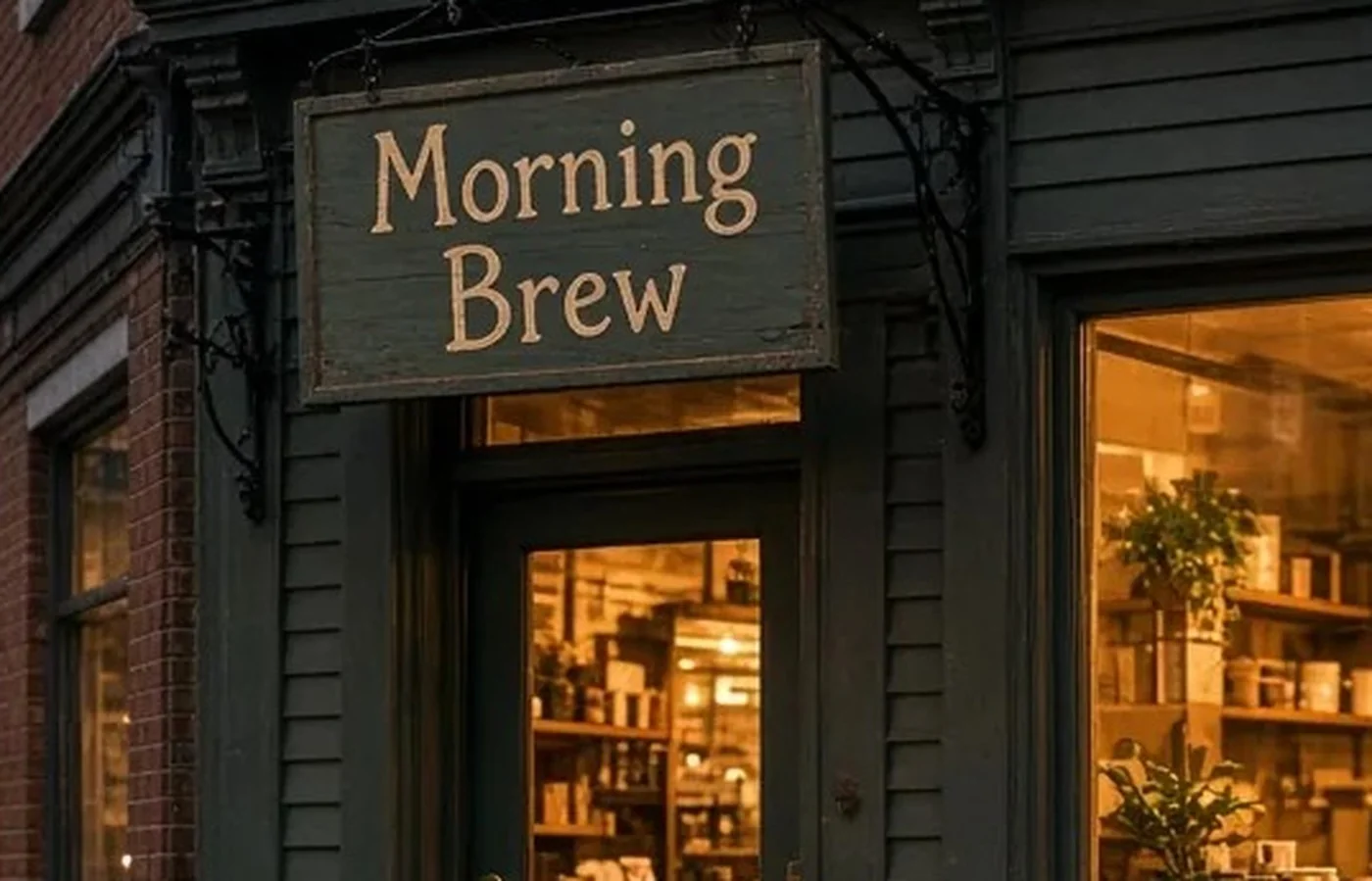
One object in a busy scene
Recolor a prop, swap a cup, or clean a small distraction without describing the whole frame.
Note: Point 1: white ceramic pot
For: Product shots, rooms, and street photos
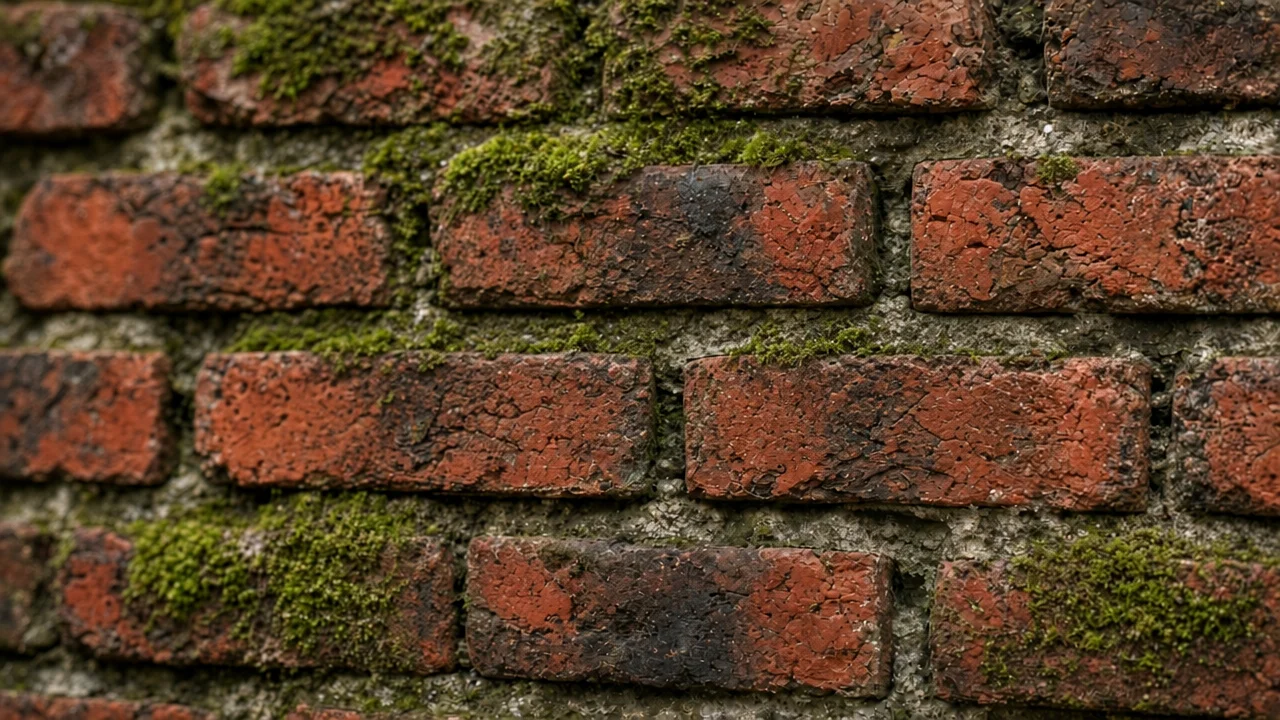
A mark on a photo
Point at a sticker, price, or overlay and note what should happen there. The bricks in this example are filled back in.
Note: Point 1: remove the price
For: Photos with a single unwanted mark
- Point at the person you mean
Words, when the font must match
This page can change lettering too, but it does not promise the original font. For that, use the text editor.
Note: Keep the font on the text editor
For: Posters, menus, and screenshots
edit text, keep the font
Frequently Asked Questions
How do I edit one part of a photo?
Upload the image, click a numbered point on the person or object, write a short note, and press Run. You can place up to 16 points.
Do I need a long prompt?
No. A short note per point is the whole instruction, such as “navy jacket” or “remove the cup”.
Will it change only the spot I clicked?
Points tell the model where to focus, and it is asked to leave unmarked areas alone. The underlying model still redraws the whole image, so a strictly local edit is not guaranteed. Check the before/after slider before you download.
How many credits does a run use?
One credit per Run, no matter how many points are on the image. Uploading and placing points does not use a credit.
What if I need the original font?
Use the text editor to edit text, keep the font. This page is a general image editor and does not promise a font match. To erase words and fill the background, use remove text from an image.
Which files can I upload?
PNG, JPG, and WebP, up to 20MB.
Related Retypit tools
Edit text, keep the font when the words should match the original lettering. Remove text from an image when you only want the words gone.